

Key takeaways
- In bulk trading, order errors start in three places: the customer PO differs from the quote, the warehouse loads more than was ordered, or the invoice uses the ordered quantity instead of the delivered one.
- For TAM Trading, we designed a hard block when the customer PO changes the product, packaging or Incoterm.
- Local and warehouse deliveries need a weighbridge record (gross, tare, net), and the final invoice follows the delivered quantity.
- Odoo 19’s “Invoice what is delivered” policy is meant for businesses selling materials or liquids in large quantities [1]. On the purchase side, 3-way matching shows whether a vendor bill should be paid [3].
Overview
TAM Trading sells soda ash, sodium bicarbonate and specialty chemicals in contracts that can reach 10,000 to 30,000 tons, in bulk or in bags. When we documented TAM’s requirements, three problems kept coming up:
- A customer PO could differ from the quotation in price, quantity or Incoterm, and nobody checked it before processing. Errors surfaced later as delivery mistakes and billing disputes.
- Warehouse staff could load more than was ordered, so unbilled product left the warehouse.
- Deliveries had no standard proof of weight in the system, so customers disputed quantities and delayed payment.
This article explains the controls we designed for TAM, and how Odoo 19 supports them. It describes the agreed design, not results from a live system.
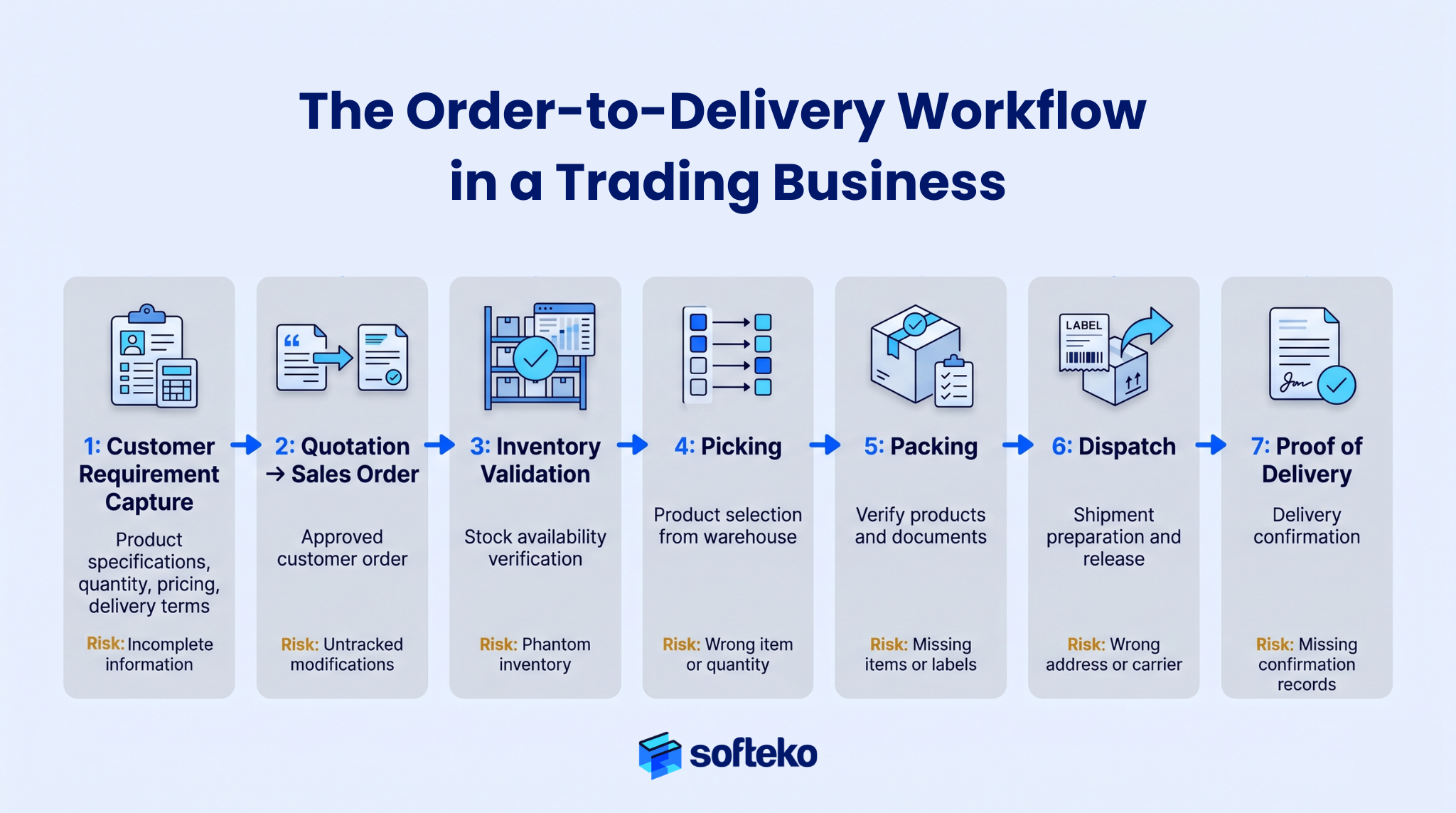
Where order errors come from
A wrong delivery is rarely one person’s mistake. It is usually several small gaps along the way:
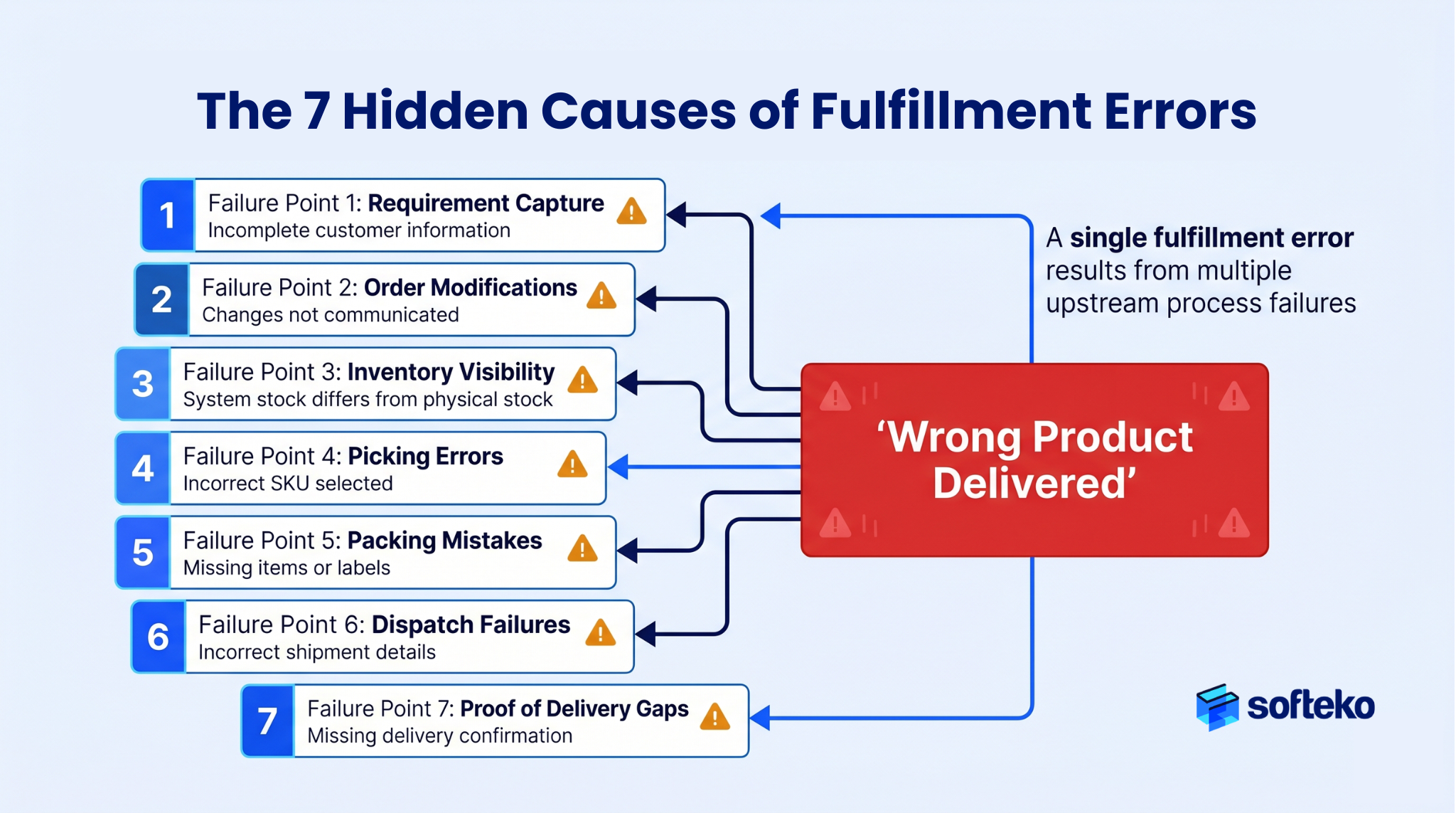
- The requirement was captured incompletely at enquiry.
- The order changed after confirmation, and the change did not reach the warehouse.
- The system showed stock that was not physically there.
- The wrong lot or packaging was picked.
- The load was not checked against the order.
- The dispatch documents did not match the load.
- There was no signed proof of what was delivered.
The controls below close the gaps that matter most in bulk trading: the PO, the load and the weight.
Control 1: the customer PO must match the quotation
Customer POs are uploaded as PDFs with automatic versions (v1, v2, v3), and the latest version is highlighted. The system compares each PO with the approved quotation:
| Difference | What happens |
|---|---|
| Product, packaging or Incoterm | Hard block. The PO must be revised, or the quotation amended and re-approved |
| Price or quantity | Allowed only with a written justification, and can be sent to Finance for review |
Any difference also raises a red flag and notifies Sales and Operations. The PO is marked Valid Customer PO only after Operations, Finance and Supply Chain confirm. This check sits in the one deal record flow.
In Odoo 19, the Lock Confirmed Sales setting locks a sales order once it is confirmed [2], which stops casual edits after this point. Changes then need someone with the right to unlock the order, which leaves a clear trail.
Control 2: no over-delivery
The design tracks the remaining quantity on every partial shipment and blocks deliveries above it. In the warehouse, picking is controlled so staff cannot load more than the delivery order allows. For warehouse shipments, the pick list or delivery order carries lot numbers, quantities and truck details.
On a 10,000-ton contract delivered in many trucks, this matters. If each truck carries a little more than the order line says, the extra adds up to product that left the warehouse and was never invoiced.
Control 3: weigh it, then invoice it
For local and warehouse deliveries, a signed weighbridge report is required before the deal can close. Logistics uploads the slip with gross, tare and net weight. The net weight feeds the stock adjustment, including the 0.4% loss deduction for bagged goods, and the final commercial invoice. Logistics checks the weighbridge report before Finance issues the final bill. The same weights confirm the 0.4% bagging loss.
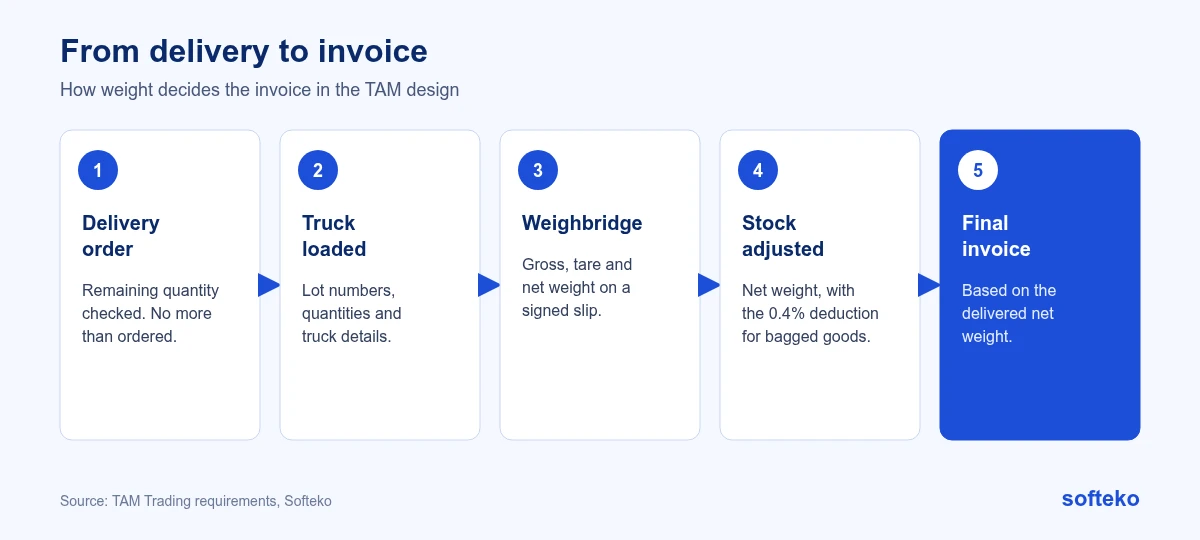
An illustrative example: a customer orders 500 tonnes. The weighbridge records a net weight of 497.8 tonnes across all trucks. With invoicing on delivered quantities, the invoice is for 497.8 tonnes. With invoicing on ordered quantities, it would be for 500, and the customer would dispute 2.2 tonnes they never received.
If deliveries and invoices in your business often disagree, we can show you where the gap is and how Odoo would close it.
Invoicing delivered quantities in Odoo 19
Odoo 19 has two invoicing policies: invoice what is ordered, and invoice what is delivered [1]. The documentation describes the delivered option as often used by businesses that sell materials, liquids or food in large quantities, where the delivered quantity may differ slightly from the order [1].
To set it up:
- In Sales › Configuration › Settings, choose the default Invoicing Policy.
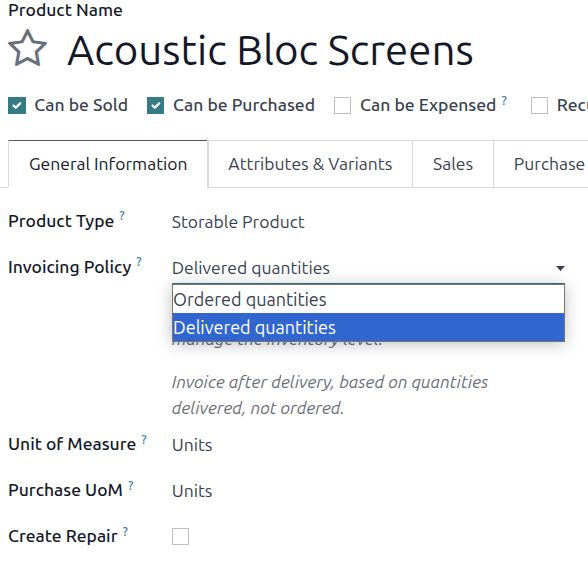
- On each bulk product, open the General Information tab and set Invoicing Policy to Delivered quantities.
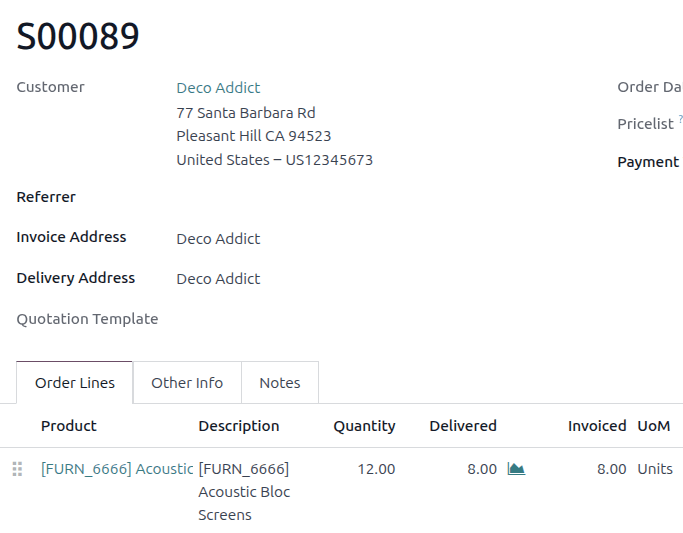
- Validate the delivery, then create the invoice from the sales order. Odoo uses the delivered quantity on each line.
The sales order lines show ordered, delivered and invoiced quantities side by side, so anyone can see what is left to deliver and bill.
Points to watch [1]:
- An invoice can only be created once at least part of the delivery has been validated.
- Changing the default policy in settings applies only to new products. Existing products must be updated one by one, or through an import.
- “Invoice what is delivered” cannot be combined with automatic invoices from online payments.
We explain both policies with examples in our article on Odoo invoicing policies: delivered vs ordered quantities.
The supplier side: quantities and three-way matching
The same discipline applies to purchases. TAM’s finance design makes a three-way match (purchase request or order, receipt and invoice) mandatory for inventory, assets and services, and blocks invoice booking without an approved order and receipt. For services billed by the ton, it adds a monthly reconciliation of actual tons against invoiced tons, with a dispute raised when the difference exceeds 1 to 2%. Receiving across countries is covered in stock across UAE and KSA.
In Odoo 19 [3]:
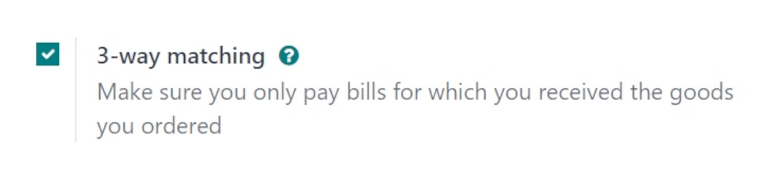
- In Purchase › Configuration › Settings, enable 3-way matching.
- Set the bill control policy on products to Received quantities.
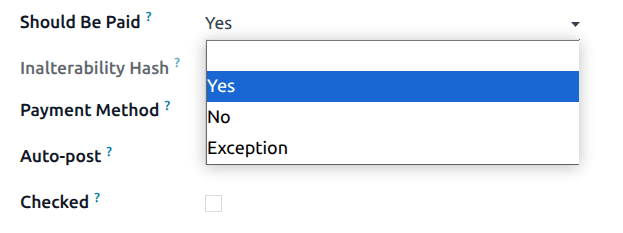
- On each vendor bill, Odoo shows a Should Be Paid status based on what was ordered, received and billed.
Validation at every handoff
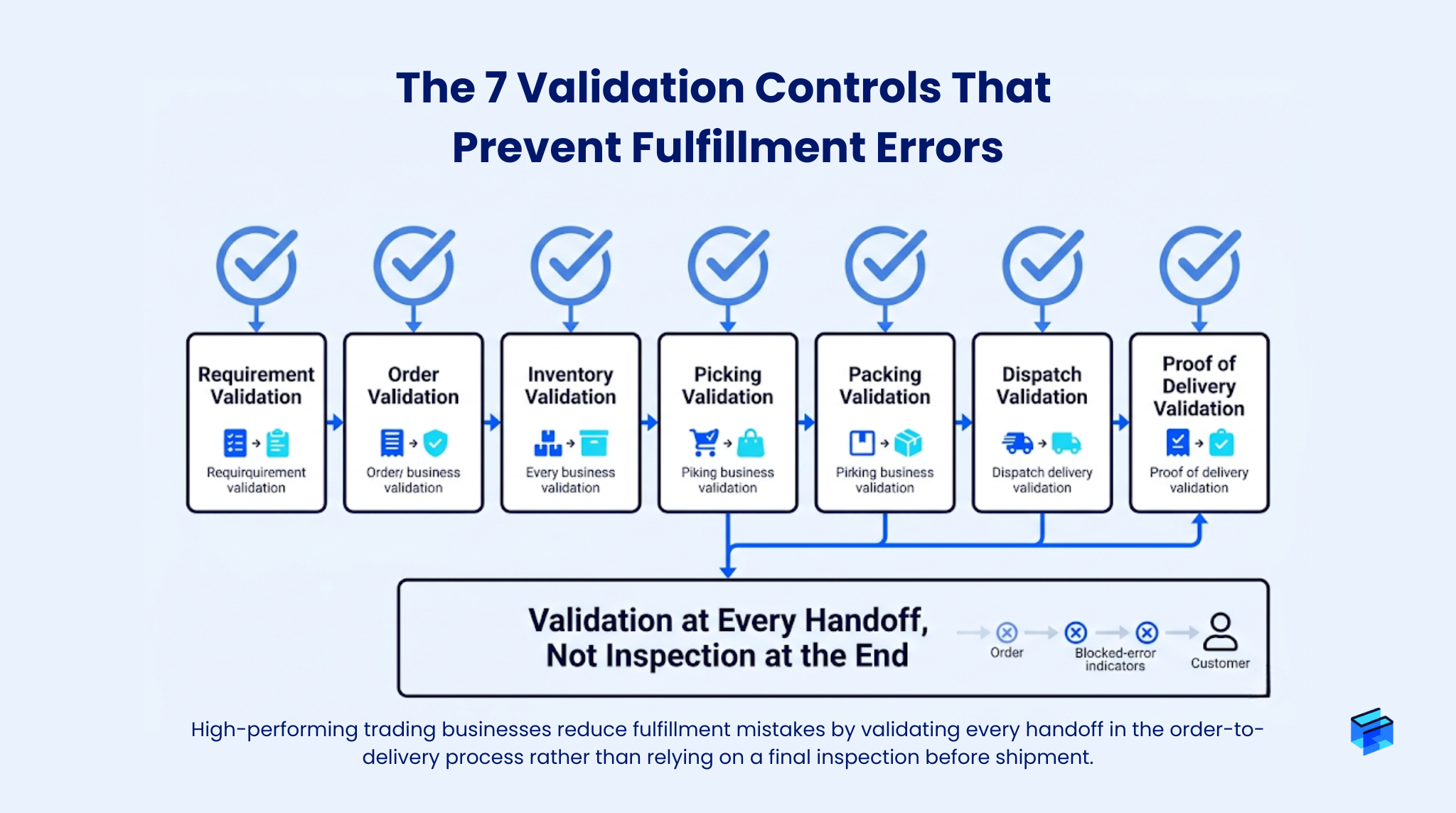
Checking at each handoff is cheaper than inspecting at the end. In TAM’s design, the checks sit at the PO, the load, the weighbridge and the bill, which are the points where quantities and money change hands.
Checklist for bulk order accuracy
- Decide which PO differences block the order and which need only a justification.
- Lock confirmed sales orders and decide who may unlock them.
- Track remaining quantities on partial shipments.
- Make a weighbridge record mandatory where weight decides the invoice.
- Set the invoicing policy on every bulk product, not only in the defaults.
- Turn on 3-way matching for supplier bills on goods and services.
FAQ
Can Odoo invoice the delivered quantity instead of the ordered quantity?
Yes. Set the product’s invoicing policy to delivered quantities [1].
Can Odoo stop an order when the customer PO does not match the quotation?
Not as a standard check. We specified a PO-to-quotation comparison with hard blocks for TAM.
Can Odoo stop a confirmed sales order from being edited?
Yes. The Lock Confirmed Sales setting locks orders once they are confirmed [2].
Can Odoo stop a vendor bill from being paid before goods are received?
With 3-way matching and received-quantity bill control, each bill shows whether it should be paid [3].
Fix order errors where they start
If your team finds order problems only when the customer complains, we can review where changes and quantities enter your process. See how we approach Odoo for trading and distribution projects.
References
[1] Odoo, Invoicing policies, Odoo 19.0 documentation. https://www.odoo.com/documentation/19.0/applications/sales/sales/invoicing/invoicing_policy.html
[2] Odoo, Create quotations, Odoo 19.0 documentation. https://www.odoo.com/documentation/19.0/applications/sales/sales/sales_quotations/create_quotations.html
[3] Odoo, Control policies, Odoo 19.0 documentation. https://www.odoo.com/documentation/19.0/applications/inventory_and_mrp/purchase/manage_deals/control_bills.html
[4] Screenshots: Odoo S.A., Odoo 19.0 documentation (Invoicing policies, Control policies), licensed under CC BY-SA 4.0 (https://creativecommons.org/licenses/by-sa/4.0/). https://www.odoo.com/documentation/19.0/