

Key takeaways
- Odoo 19 supports ZATCA through the Saudi Arabia localisation: Phase 1 QR codes in the accounting package, and Phase 2 through the e-invoicing module.
- Phase 2 clears B2B tax invoices with ZATCA. B2C simplified invoices are reported, with a QR code.
- Each sales journal is onboarded separately. Test in Sandbox and Simulation first, because once you switch to Production and submit an invoice, you cannot go back.
- Most rejections come from missing company or customer data, so clean master data before go-live.
- Tax invoices and simplified tax invoices must be in Arabic. They can be bilingual with English.
Overview
Every business that issues tax invoices in Saudi Arabia has to follow the e-invoicing rules of the Zakat, Tax and Customs Authority (ZATCA). When we documented the requirements for Sahl Pack (Modern Sahl Industries), a Saudi flexible packaging manufacturer, ZATCA Phase 1 and Phase 2 compliance was a firm requirement, alongside invoicing in US dollars, Saudi riyals and UAE dirhams with the riyal as base currency. It is one reason why Sahl Pack chose one system. For the rest of the setup, see what Odoo covers for packaging manufacturers.
This guide explains what Odoo 19 provides and what to prepare, step by step. It is based on Odoo’s own documentation, and the steps can change as ZATCA updates its rules. Check ZATCA’s current requirements before you go live.
The Odoo modules involved
| Module | What it adds |
|---|---|
| Saudi Arabia – Accounting | Chart of accounts, taxes and Phase 1 QR code support |
| Saudi Arabia – Accounting Reports | Saudi accounting reports |
| Saudi Arabia – E-invoicing | Phase 2 integration with the ZATCA API |
| Saudi Arabia – E-invoicing (Simplified) and Point of Sale | E-invoicing and compliance for point of sale |
| Saudi Arabia – Withholding Tax | Withholding tax on payments |
The localisation also includes preconfigured taxes, such as standard 15% VAT, zero-rated and exempt rates, and fiscal positions [1]. Exports of goods to a buyer outside the GCC fall under the zero-rated category in Odoo’s tax list [1], which matters for a manufacturer planning to sell abroad.
One tax detail catches people out: if you give a global discount on an invoice, put the 15% tax on the discount line, as ZATCA rules require [1].
B2B and B2C work differently
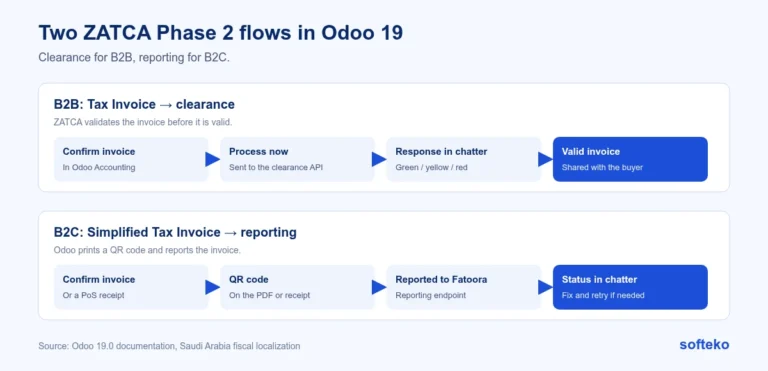
- B2B: a Tax Invoice goes through clearance. ZATCA validates it before it is valid.
- B2C: Odoo generates a Simplified Tax Invoice with a QR code and reports it to ZATCA’s Fatoora endpoint [1].
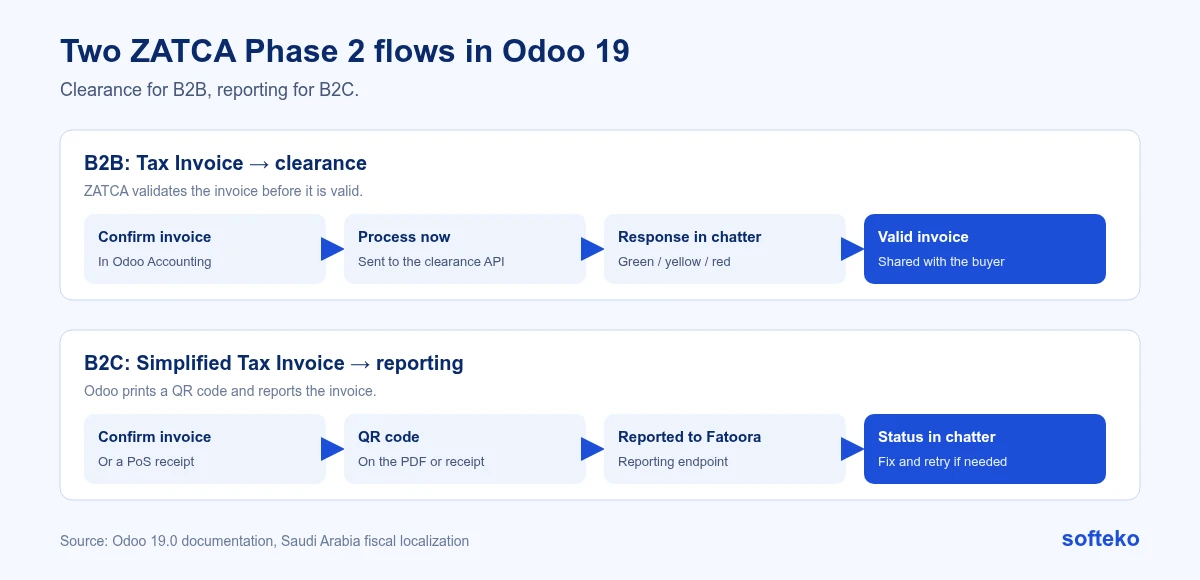
A manufacturer like Sahl Pack sells mostly to businesses, so clearance is the main flow. In Odoo, an invoice with a related contact, such as an invoicing address, is sent to the clearance API as B2B [1].
Step 1: Prepare your company data
Odoo’s documentation lists the company data ZATCA needs [1]:
- Company Name, up to 63 characters
- Full Address, including District, Building Number and Plot Identification
- An Identification Scheme, such as the commercial registration number, and its number
- VAT Number
- Currency set to SAR
The same fields apply to customer contacts [1]. Commercial registration and VAT certificates were already part of Sahl Pack’s onboarding checks for new customers, which makes clean invoice data easier. Groups with UAE and KSA entities should also plan UAE to KSA intercompany flows.
If you have branches, enter the parent company’s VAT number on the branch contact, and the branch’s own commercial registration number in its Identification Scheme. A branch can use the parent’s sales journal, or have its own onboarded journal [1].
Step 2: Set the invoice language
Saudi VAT rules require tax invoices and simplified tax invoices, and their credit and debit notes, to be in Arabic. They can be bilingual with English [1].
- For every customer: set the Language field on the customer form. Documents for that customer are generated in that language [1].
- For Arabic as a second language on all tax invoices: go to Accounting › Configuration › Settings, find the Customer Invoices section, and enable Gulf Cooperation Council Format [1].
Step 3: Activate your invoicing currencies
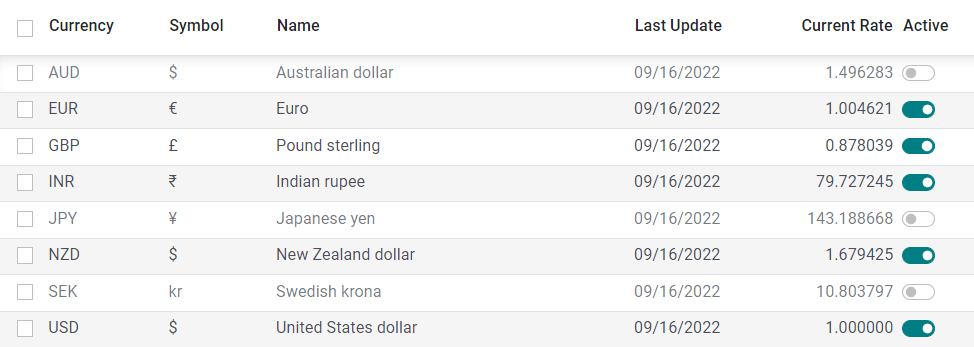
Sahl Pack invoices in SAR, USD and AED, with SAR as the company currency. Activate each foreign currency you invoice in before testing, so test invoices cover every case you will use in production [3].
Step 4: Onboard in three modes
Odoo offers three ZATCA API modes [1]:
| Mode | Use it for | Where the OTP comes from |
|---|---|---|
| Sandbox | A shared test environment to try the integration | Pre-filled by Odoo |
| Simulation (pre-production) | Testing with your own details, in a copy of your live database. Invoices here are not legally valid | Fatoora Simulation portal |
| Production | Live invoicing | Fatoora portal, production environment |
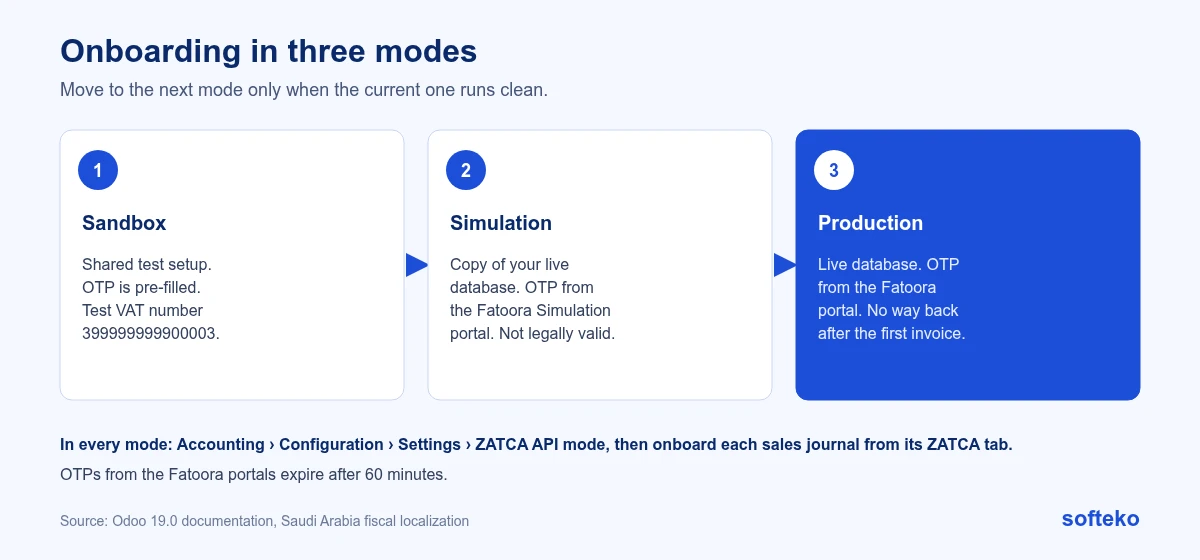
The steps are the same in each mode [1]:
- Go to Accounting › Configuration › Settings. In the Saudi Arabia Electronic Invoicing section, set the ZATCA API mode.
- Check that all company information is complete.
- Go to Accounting › Configuration › Journals and open the Sales journal.
- On the ZATCA tab, click Onboard, enter the 6-digit OTP and click Confirm.
- Create and confirm a customer invoice. When the blue banner appears, click Process now.
- Check that the response is Action Successful. If not, read the response in the chatter.
For Sandbox, Odoo suggests using the test VAT number 399999999900003 on the company [1]. For Simulation, duplicate your live database first, so you test with your real settings without touching live data [1].
Two warnings from the documentation. Once you switch to Production and submit an invoice, you cannot switch back to Sandbox or Simulation. And OTPs from the Fatoora portals expire after 60 minutes [1]. If a sales journal is no longer used, revoke it in the Fatoora portal [1].
Step 5: Read ZATCA’s response
After an invoice is submitted, ZATCA’s response appears in the invoice chatter. The colour tells you the result [1]:
- Green, accepted: the invoice is compliant.
- Yellow, accepted with warnings: legally valid, but fix the cause. Warnings may become rejections later, and frequent warnings may lead ZATCA to investigate.
- Red, rejected: not legally valid. Fix the issue in the invoice or company settings and click Retry.
The response also carries a code. The ones you are most likely to see [1]:
| Code | Meaning | What to do |
|---|---|---|
| 200 | Action successful | Nothing |
| 202 | Successful with warnings | Correct the cause for future invoices |
| 400 | Rejected | Read the error, correct it, resubmit |
| 401 | Unauthorised | Check the certificate and secret key |
| 429, 500, 503, 504 | Invoice not received | Resend |
Here is an example of a real error message format from the documentation: “BR-KSA-F-13 … Please recheck Other Seller/Buyer ID”. It points to the buyer or seller identification number, which is master data [1]. That is typical: most rejections are fixed in the contact or company record, not in the invoice lines.
Step 6: Credit notes, debit notes and advances
- A credit or debit note needs a ZATCA Reason, chosen in the credit or debit window, or later on the note’s Other Info tab [1]. The approved reasons are: cancellation or suspension of the supply, an essential change that changes the VAT due, an agreed change to the supply value, a refund, or a change in seller or buyer details.
- If a credit note is not linked to an invoice in Odoo, enter the original invoice number in the Customer Reference field [1].
Worked example: a customer returns part of a pouch order because of a print defect. Create the credit note from the original invoice, so the two are linked, and choose the refund reason. If the credit note were created on its own, the original invoice number would go in Customer Reference instead.
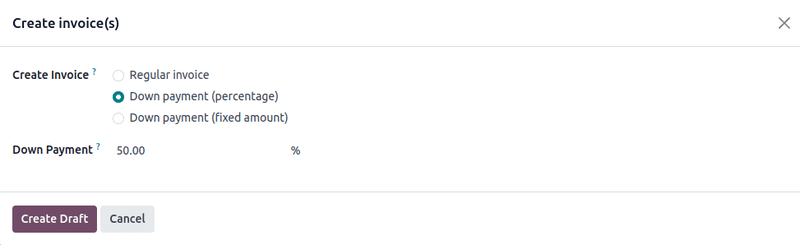
Down payments are handled in line with ZATCA’s guidelines [1]. In Odoo Sales, a down payment invoice is created from the sales order with Create Invoice, choosing a percentage or a fixed amount [4]. Sahl Pack’s artwork does not start until the advance is confirmed, so this flow matters. Test the advance invoice, the final invoice and the deduction of the advance in Simulation before go-live.
Retention, where a customer holds back part of an invoice until a warranty ends, has its own handling in the localisation through a retention tax and tax position [1]. Most packaging manufacturers will not need it, but contract manufacturers sometimes do.
What Odoo keeps for audit
Each submitted invoice produces a UBL 2.1 XML file, which is stored in the chatter. The PDF sent to the customer is stored there too. Neither can be deleted [1].
Successfully submitted invoices can only be reset to draft in Sandbox or Simulation. In Production, a mistake is corrected with a credit or debit note [1].
You can check an invoice’s QR code with ZATCA’s official app, in its E-Invoice Validation service [1].
Recent changes
Odoo keeps updating the Saudi localisation. The 19.2 release notes, for example, list better error handling during journal onboarding and an additional identification number field for non-Saudi contacts, in line with a ZATCA rule [2]. Check the release notes for your version before you go live.
Go-live checklist
- Install the Saudi localisation and e-invoicing modules.
- Complete company data: name, address with building and plot numbers, identification scheme, VAT number, SAR currency.
- Check customer master data for B2B buyers, using the same fields.
- Set Arabic, or Arabic and English, on tax invoices.
- Activate every currency you invoice in.
- Test every sales journal in Sandbox, then Simulation.
- Test credit notes with each ZATCA reason you use.
- Test advance payment invoices if you take deposits.
- Decide who checks rejected invoices and warnings every day.
- Switch to Production only when Simulation runs clean.
FAQ
Does Odoo support ZATCA Phase 2?
Yes. The Saudi Arabia – E-invoicing module connects to the ZATCA API for clearance and reporting [1].
Can I test without sending real invoices?
Yes. Use Sandbox, then Simulation, where invoices are not legally valid [1].
What happens if ZATCA rejects an invoice?
It stays rejected and is not legally valid. Correct the issue and click Retry [1].
Do I need to onboard every sales journal?
Yes. Each sales journal is onboarded separately [1].
Can I cancel a submitted invoice?
In Production, no. Submitted invoices can only be reset to draft in Sandbox or Simulation. In Production, issue a credit note with a ZATCA reason [1].
Do invoices have to be in Arabic?
Yes. Tax invoices and simplified tax invoices must be in Arabic, and can also include English [1].
Plan e-invoicing with the rest of finance
E-invoicing touches customer data, taxes, credit notes and advances. We plan it with the rest of the accounting setup. Read more about our Odoo implementation service.
References
[1] Odoo, Saudi Arabia fiscal localization, Odoo 19.0 documentation. https://www.odoo.com/documentation/19.0/applications/finance/fiscal_localizations/saudi_arabia.html
[2] Odoo, Odoo 19.2 release notes. https://www.odoo.com/odoo-19-2-release-notes
[3] Odoo, Multi-currency system, Odoo 19.0 documentation. https://www.odoo.com/documentation/19.0/applications/finance/accounting/get_started/multi_currency.html
[4] Odoo, Down payments, Odoo 19.0 documentation. https://www.odoo.com/documentation/19.0/applications/sales/sales/invoicing/down_payment.html
[5] Screenshots: Odoo S.A., Odoo 19.0 documentation (Multi-currency system, Down payments), licensed under CC BY-SA 4.0 (https://creativecommons.org/licenses/by-sa/4.0/). https://www.odoo.com/documentation/19.0/