


Key takeaways
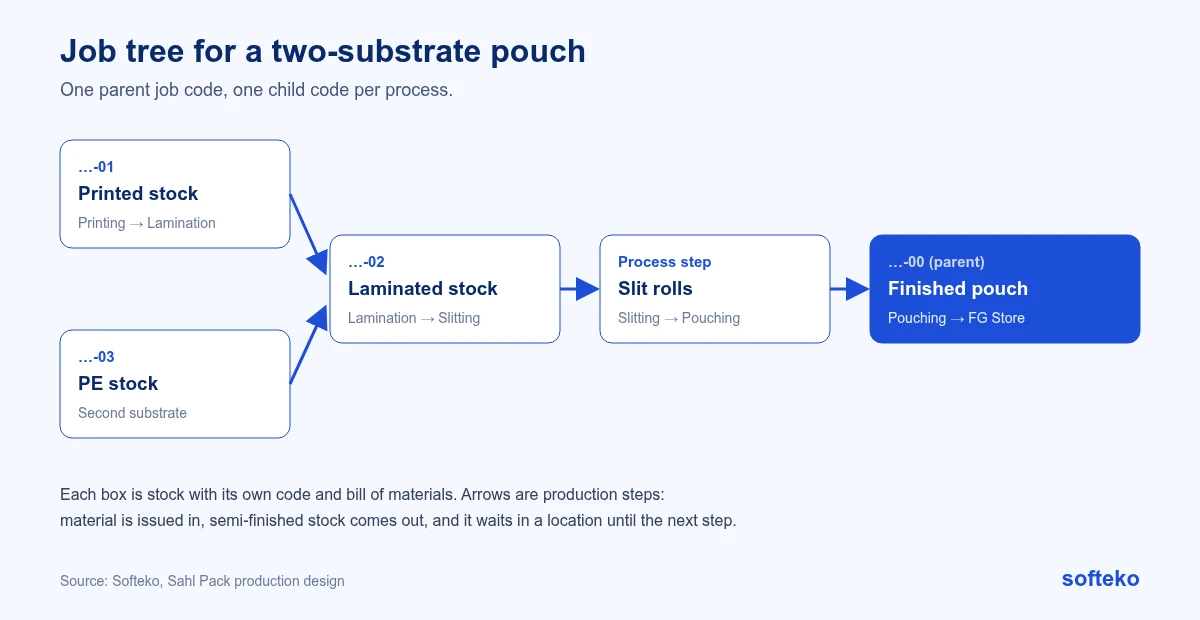
- A laminated pouch is several production steps with stock between them. The design gives each step its own child code under one parent job code.
- Each process has its own bill of materials, written per 1,000 units so the quantities are practical to read.
- Before anything is produced, the planner checks finished goods stock and releases only what needs making. This prevents overproduction.
- Odoo 19 covers work centres, operation sequences and maintenance blocks as standard. Linking every process into one production order with one printout needed custom work.
Overview
A flexible packaging job rarely runs on one machine. A stand-up pouch might be printed, laminated once or twice, slit and then converted on a pouching machine. Each step consumes material, produces semi-finished stock and needs its own machine time.
When this is planned on a whiteboard or a spreadsheet, jobs get produced twice, machines are booked during maintenance, and nobody can say where a job is stuck.
This article explains the production planning design we documented for Sahl Pack (Modern Sahl Industries), a Saudi flexible packaging manufacturer moving from trading packaging to making it. Production is a later phase of the project, so this is the agreed design. It does not describe a live system.

Job codes: one parent, one child per process
The job code has three parts: a five-digit customer code, a six-digit job serial and a two-digit process code. The parent job code created by sales comes from the order flow.
| Code | Two-substrate job | Three-substrate job |
|---|---|---|
| …-00 | Finished goods (parent) | Finished goods (parent) |
| …-01 | Printed stock | Printed stock |
| …-02 | Laminated stock | First laminated stock |
| …-03 | PE stock | PE stock |
| …-04 | — | Second laminated stock |
Process code 00 always means the finished product. It is used on the sales order and the invoice, whatever process comes last. Sales creates the parent code when the quotation is approved. The planner creates the child codes while building the bills of materials.
A bill of materials for each process
Each child code has its own bill of materials (BoM), based on a batch of 1,000 units rather than one unit. Per-unit quantities of ink or adhesive are tiny fractions. Per 1,000 they are easy to enter and check. Material reaches each process through material issue and return.
- Printing BoM: film, inks and the plates.
- Lamination BoM: printed film from the previous step, the second substrate and adhesive, based on the number of passes.
- Slitting BoM: laminated film, cores and packing covers.
In Odoo 19, a BoM can list operations, each carried out at a work centre with a default duration [1]. Work order dependencies can block one operation until an earlier one is finished [2]. That is the standard building block for a printing → lamination → slitting → pouching sequence.
A worked example of the batch size: if a pouch needs 0.0042 kg of adhesive, nobody can check that figure by eye. Per 1,000 pouches it is 4.2 kg, which an operator can weigh and a planner can sense-check. The figure is illustrative.
Release only what needs producing
Production orders are created by the planner after the sales order is approved, one for each sales order line. Before that, an order release page lists approved sales orders with their lines and the finished goods already in stock. The planner releases only the lines that need production.
This is the main defence against overproduction: a repeat order that can be filled from stock is not produced again by mistake.
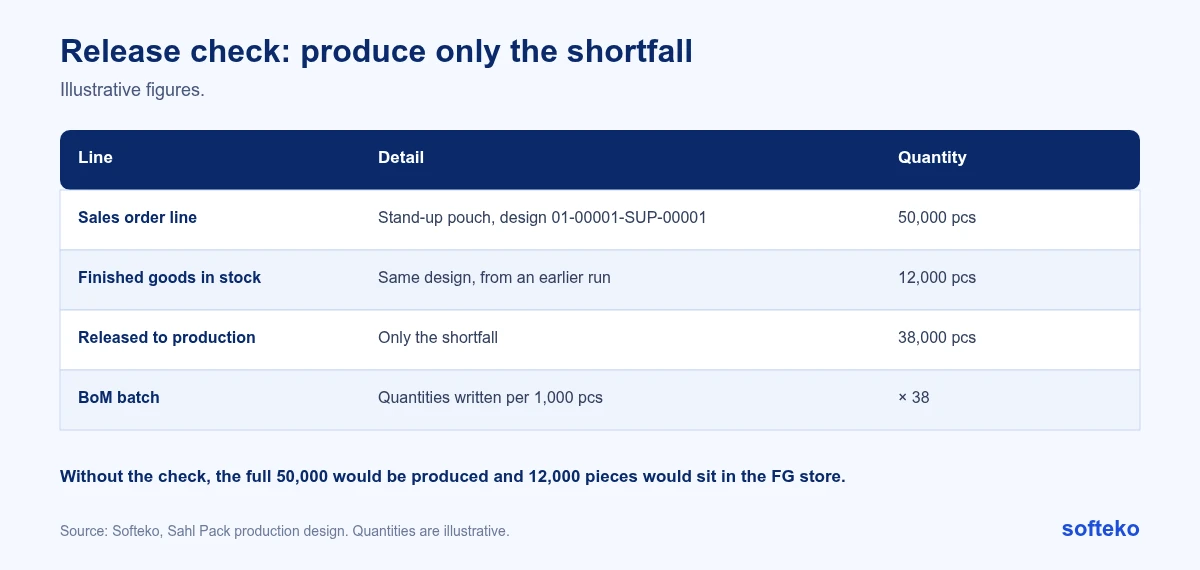
Because the BoMs are written per 1,000 units, the released 38,000 pieces is simply 38 batches. Every material quantity on every process page is the BoM figure multiplied by 38.
One production order, a page for each process
A released job gets one master production order. Under it, each process (printing, lamination 1 and 2, slitting, pouching) has its own page, with the same layout and process-specific data:
- Materials from the BoM, with stock availability
- Planned quantity, in kg or metres
- Planned wastage
- Assigned machine
- Changeover and running time, calculated from the planned quantity and machine speed
- Remarks from the planner to the operators
When printed, all the pages combine into one document, so each work centre gets the same instructions.
Planned quantities come from the BoM, and only the planner can change them. Operators record actual output, for example per shift, against the specific production order and process. Output is never logged as a loose entry.
Wastage set per job
Quoting uses a default wastage. Production does not. The planner sets the wastage allowance for each job, because a job with more processes and substrates loses more material in set-ups and joins. Recording actual waste against that allowance shows whether quotes need adjusting. Compare this with quoting wastage.
Maintenance that blocks the schedule
A press booked during its preventive maintenance window is a common cause of late orders. The design links maintenance to scheduling, so planned maintenance blocks or moves affected manufacturing orders.
Odoo 19 supports this directly. A maintenance request for a work centre can block that work centre, so no work orders can be planned there while the maintenance is carried out [3]. Each work centre also has setup and cleanup times and alternative work centres to use when it is unavailable [4].
Plate life
Plates wear out. In the design, each plate on a printing BoM has a rated life in impressions. Usage is counted on every run, and when a plate nears its limit, the system raises a request for a replacement plate.
Standard Odoo Maintenance tracks equipment failures and calculates statistics such as mean time between failures [5]. Counting impressions per plate is a different model. We recorded it as an item to assess against Maintenance, with custom development as the likely route.
How to set up the standard parts in Odoo 19
These steps cover what Odoo 19 Manufacturing and Maintenance do as standard. They are the base the custom master order sits on.
Step 1: Turn on work orders and dependencies
Go to Manufacturing › Configuration › Settings, enable Work Orders, then enable Work Order Dependencies, which appears below it [2].
Step 2: Build the bills of materials from the bottom up
Create the lowest-level products first: printed stock and PE stock. Give each its own BoM. Then create the laminated stock with a BoM that uses them as components, and so on up to the finished pouch. Odoo calls this a multilevel BoM [6].
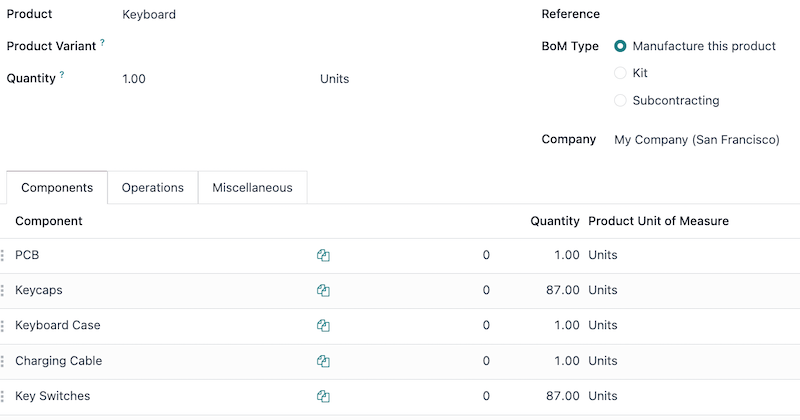
To create manufacturing orders for the lower levels automatically, Odoo recommends a reordering rule on each semi-finished product with minimum and maximum both set to 0. The alternative is to enable the Replenish on Order (MTO) and Manufacture routes on the semi-finished product. In both cases, the lower level must be finished before the top level can start [6].
Step 3: Add operations and block them in order
On each BoM, add the operations on the Operations tab, each at a work centre [1]. Then open the Miscellaneous tab and tick Operation Dependencies. A Blocked By field becomes available on each operation [2].
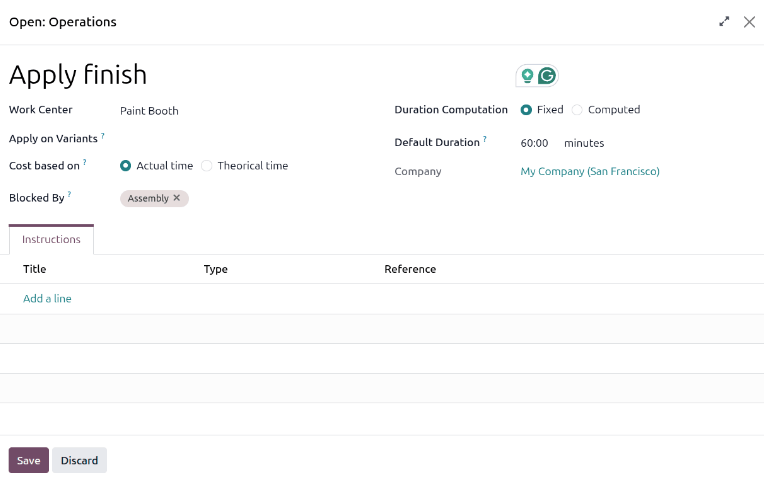
When the manufacturing order is confirmed, blocked work orders show a Blocked tag until the earlier ones are done [2].
Step 4: Block a press for maintenance
Create a maintenance request for the work centre. Set the Scheduled Date and Duration, then tick Block Workcenter. No work orders or other maintenance can be scheduled on that work centre while the request is open [3].
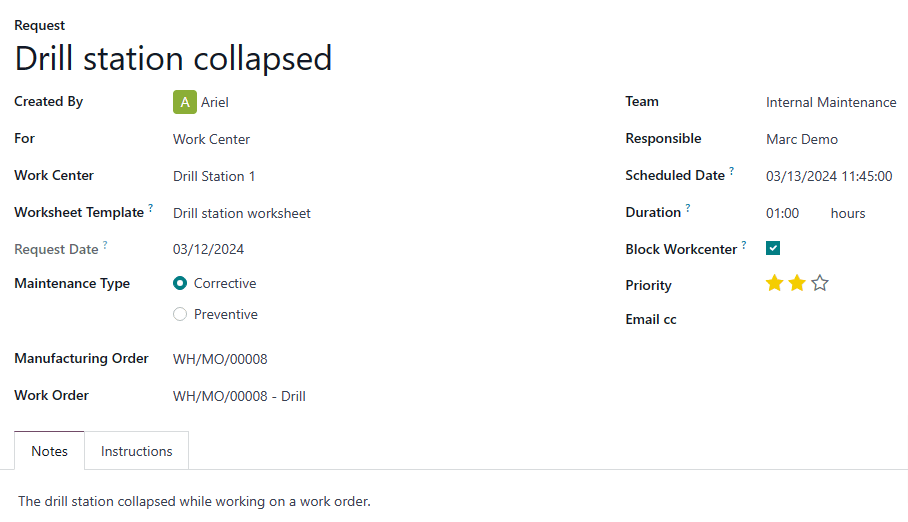
For preventive maintenance, choose Preventive as the maintenance type, so planned stops can be told apart from breakdowns [3].
Step 5: Check the load on each machine
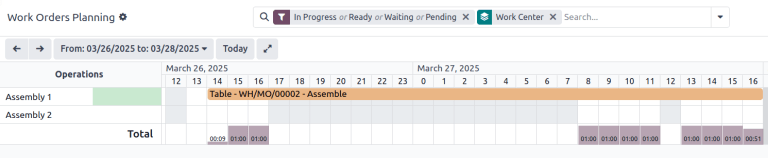
Go to Manufacturing › Planning › Planning by Workcenter to see the scheduled work orders on each work centre as a Gantt chart [4].
Where orders get delayed, and what the design tracks
| Delay | What the design tracks |
|---|---|
| Waiting for artwork or plates | Prepress stages: file sent, Cromalin received, plates ready |
| Waiting for material | Expected arrival date on each purchase order line |
| Machine unavailable | Maintenance requests that block work centres |
| Produced twice, or produced too early | Order release page with finished goods stock |
| Lost on the floor | Output logged against the production order and process |
In Odoo, planned work can be viewed by production order or by work centre [2]. Plate delays are explained in our guide to prepress stages.
What needed custom work, and why
Standard Odoo Manufacturing plans an order through its operations. Sahl Pack’s planners work with a master order, separate linked pages for each process, a combined printout and a release check against finished goods. The client’s team expected this to need customisation, and we recorded it as an open item to confirm against standard Manufacturing before building. For the standard side, see what Odoo covers as standard.
There were two ways to build it:
| Option | How it works | Trade-off |
|---|---|---|
| Multilevel BoMs with standard orders | One manufacturing order per child code, created automatically from the parent [6] | Uses standard Odoo, but planners see several separate orders, not one master order with one printout |
| Custom master order | One master record that holds every process page and prints as one document | Matches how planners work today, but is development work to build and maintain |
The choice depends on how much the planners value one combined order over staying close to standard. Our advice is to test the standard option with real jobs before deciding to build.
Checklist
- Write down every process a typical job passes through, and the stock between them.
- Decide the batch size your BoMs will use.
- Decide who may change planned quantities.
- Agree how operators record output and against what.
- Put preventive maintenance in the same calendar as production.
- Decide how plates are tracked and replaced.
- Test standard multilevel BoMs with real jobs before deciding on custom work.
FAQ
Can Odoo handle multi-step packaging production?
Yes. Operations on a BoM, work centres and work order dependencies handle process sequences as standard [1][2]. Packaging-specific views, such as one combined order for all processes, may need custom work.
Why write BoMs per 1,000 units?
Ink, adhesive and accessory quantities per single pouch are very small decimals. Per 1,000 units they are easier to enter and check.
How do you stop overproduction?
Check finished goods stock before releasing production, and let only the planner change planned quantities.
Can maintenance stop a machine being scheduled?
Yes. In Odoo, a maintenance request can block the work centre for its duration [3].
Do semi-finished products need their own manufacturing orders?
In a multilevel BoM, yes. Each level with its own BoM is produced by its own manufacturing order, and the lower level must be finished before the level above starts [6].
Draw your job tree
Take your most common product and draw every process and the stock between steps, as in the diagram above. That drawing is the start of your BoMs and work centres. Linked process orders are Odoo customisation work.
References
[1] Odoo, Bill of materials, Odoo 19.0 documentation. https://www.odoo.com/documentation/19.0/applications/inventory_and_mrp/manufacturing/basic_setup/bill_configuration.html
[2] Odoo, Work order dependencies, Odoo 19.0 documentation. https://www.odoo.com/documentation/19.0/applications/inventory_and_mrp/manufacturing/advanced_configuration/work_order_dependencies.html
[3] Odoo, Maintenance requests, Odoo 19.0 documentation. https://www.odoo.com/documentation/19.0/applications/inventory_and_mrp/maintenance/maintenance_requests.html
[4] Odoo, Work centers, Odoo 19.0 documentation. https://www.odoo.com/documentation/19.0/applications/inventory_and_mrp/manufacturing/advanced_configuration/using_work_centers.html
[5] Odoo, Maintenance setup, Odoo 19.0 documentation. https://www.odoo.com/documentation/19.0/applications/inventory_and_mrp/maintenance/maintenance_setup.html
[6] Odoo, Multilevel BoMs, Odoo 19.0 documentation. https://www.odoo.com/documentation/19.0/applications/inventory_and_mrp/manufacturing/advanced_configuration/sub_assemblies.html
[7] Screenshots: Odoo S.A., Odoo 19.0 documentation (Multilevel BoMs, Work order dependencies, Maintenance requests, Work centers), licensed under CC BY-SA 4.0 (https://creativecommons.org/licenses/by-sa/4.0/). https://www.odoo.com/documentation/19.0/