


Key takeaways
- In flexible packaging, artwork depends on an outside plate maker, so most delays happen between companies, not inside one.
- The design tracks three external stages for each job: file sent, Cromalin received and plates ready.
- Every approved design gets a design number (GDN). A design change always means a new GDN, even if the product type stays the same.
- Artwork does not start until finance confirms the advance payment.
- In Odoo 19, each artwork job is a task in the Project app. Stages, task statuses, followers and the chatter cover the approval loop without custom code.
Overview
Before a flexible packaging job can be printed, its artwork has to be placed on a dieline, checked by production, separated into colours by a plate maker, proofed, approved by the customer and turned into printing plates. If one approval is missed, plates are made from the wrong file, and the cost and delay land on the printer.
This article describes how we mapped this process for Sahl Pack (Modern Sahl Industries), a Saudi flexible packaging manufacturer, and how it is tracked in Odoo 19. The artwork module is scheduled after the sales and inventory modules, so this is the agreed design, not a live system.
When artwork can start
The sales order is created when the customer approves the quotation. Even then, the artwork and production teams cannot start any task on the job until finance confirms that the advance payment has arrived. This avoids spending design and plate costs on orders that may not go ahead. The order flow before this point is covered in enquiry to job code.
Standard Odoo does not stop a project task from starting because a payment is missing. This lock is a small custom rule: artwork tasks stay blocked until finance marks the advance as received.
The approval loop
The flow agreed with the client in June 2026:
- Design file. The customer supplies a basic design. If there is none, the artwork team prepares one, with a “revise design” loop until the customer is happy.
- Dieline. The artwork team places the design on the dieline template for the bag type.
- Production approval. Production checks the artwork file before it leaves the building.
- Plate maker. The approved file goes to the outside plate maker, who returns a Cromalin proof and colour separation files.
- Artwork review. The artwork team checks both files.
- Production review. Production approves again.
- Customer approval. The customer gives final sign-off on the proof.
- Plates. All documents go to the plate maker, who makes the physical plates.
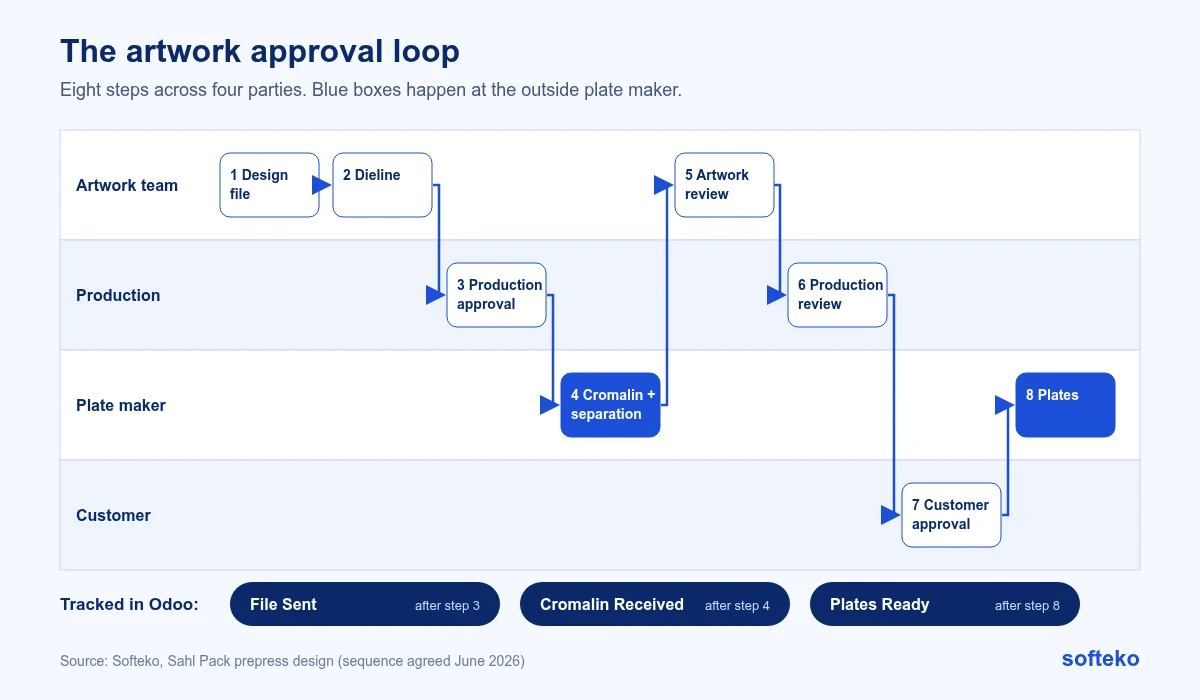
Two production checks may look like duplication. They catch different problems: the first checks the file can be printed on the press, and the second checks the proof matches what production expects to run.
The loop crosses company boundaries three times: out to the plate maker at step 4, out to the customer at step 7 and back to the plate maker at step 8. Each crossing is where a job can wait for days without anyone inside noticing. That is why the tracked stages sit at those points.
What Odoo tracks, and what stays outside
The plate maker works in its own systems, through email or a shared prepress platform. Building a full integration with an outside vendor was out of scope for this phase. So the design keeps communication where it is, and Odoo tracks the status of each job:
| Stage | Meaning |
|---|---|
| File Sent | Approved artwork sent to the plate maker |
| Cromalin Received | Proof and colour separation files are back for review |
| Plates Ready | Physical plates are made and can be booked into stock |
Each artwork job is a task in the Odoo Project app, moving through these stages. The artwork team talks to the customer directly, and the salesperson is copied on every message. For the other standard apps, see what Odoo covers as standard.
How to set up artwork tracking in Odoo 19 Project
The steps below show how the loop can be set up with standard Project features. Stage names other than the three tracked stages are an example. Use the names your team already says out loud.
Step 1: Create an artwork project
Open Project and click New. Name it, for example, “Artwork”. Each artwork job will be a task in this project [1]. Tasks can be added by hand from the Kanban view, or created from incoming emails [3].
In the project Settings, set the visibility so only the artwork, production and sales teams can see it.
Step 2: Create the stages
Odoo Project has no default stages. You create them when the project is first opened, by typing a name and clicking Add [2]. A stage list that follows the loop could be:
- Design
- Dieline
- Production Approval
- File Sent
- Cromalin Received
- Review (artwork and production)
- Customer Approval
- Plates Ready
Step 3: Use task statuses for approve and revise
Inside each stage, a task has a status. Two of them match the approval loop directly [2]:
- Approved: the task is ready to move to the next stage.
- Changes Requested: changes are needed, either from the customer or internally, before it moves.
When the task moves to a new stage, these statuses reset to In Progress, so each approval belongs to one stage only [2]. A reviewer at the Review stage cannot accidentally inherit an approval given at Production Approval.
Step 4: Notify the customer at the right stage
Each stage can have an email or SMS template. When a task reaches that stage, Odoo sends it to the customer automatically [2]. On the Customer Approval stage, that message can tell the customer the proof is ready for sign-off.
Step 5: Copy the salesperson and keep notes separate
Add the salesperson as a follower on each task. Followers receive the messages sent from the task, so the salesperson sees every exchange with the customer.
In the chatter, use Send message for anything the customer should see, and Log note for minor internal corrections. That is how the design keeps small fixes out of the formal revision history.

Step 6: Attach the files to the task
Attach the dieline, Cromalin proof and colour separation files to the task. If the Documents app is installed, files uploaded to projects also appear there under Projects [1].
Design numbers (GDN)
Every approved design gets a Graphic Design Number. The format is customer code, product type and job number, for example 01-00001-FB-00001:
| Part | Example | Meaning |
|---|---|---|
| Country prefix | 01 | 01 for a Saudi customer, 02 for a customer outside Saudi Arabia |
| Customer number | 00001 | At least five digits, generated by the system |
| Product type | FB | SUP stand-up pouch, FB flat bottom, QS quad seal, SS 3- or 2-side seal, L label, RS roll stock |
| Job number | 00001 | System-generated |
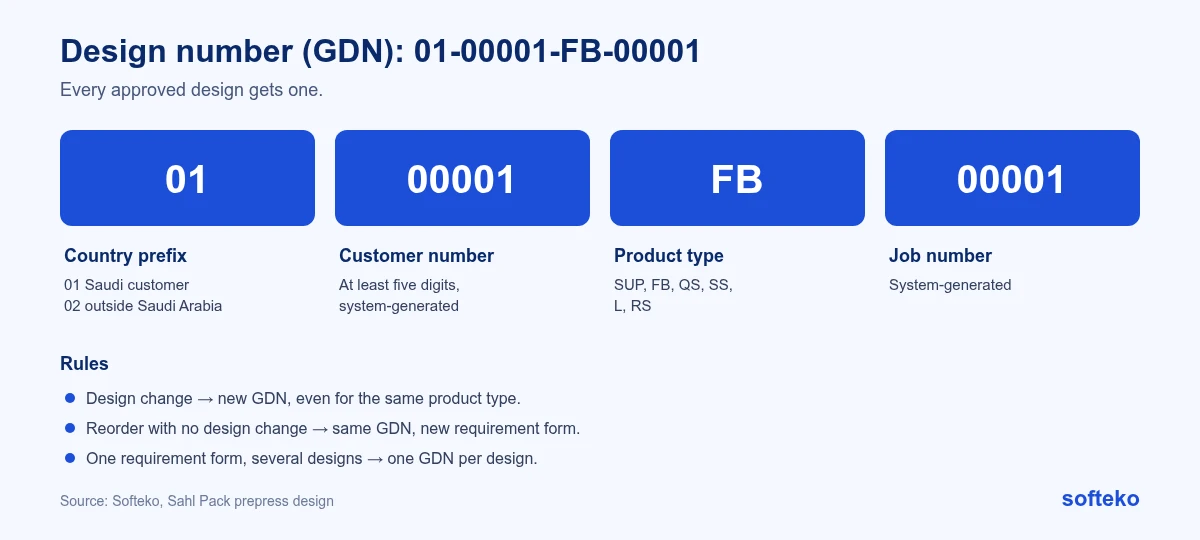
The rules that keep it reliable:
- A design change always means a new GDN, even if the product type is the same.
- A reorder with no design change keeps the GDN, but gets a new requirement form, so the transaction is still traceable.
- One requirement form can have several designs, and each design gets its own GDN.
The GDN is not a standard Odoo field. It needs a custom field and numbering logic, because the country prefix and customer number come from the customer record.
Revisions without clutter
Not every change deserves a formal version. The design separates them:
- Formal revisions, internal or requested by the customer, go in a revision history table and need sign-off.
- Minor internal corrections are logged as messages on the task (the Odoo chatter).
- Only final, approved files carry a GDN version.
Plates for repeat orders
Plates are stocked with their own item codes, so a repeat order for the same design can find its plates. Each plate also has a rated life in impressions. Our article on planning multi-process production explains how the design tracks plate usage and flags replacement.
Design work is free by default. The system can add a fixed fee for large or non-standard branding requests.
How this maps to Odoo 19
| Need | In Odoo 19 | Approach |
|---|---|---|
| One record per artwork job, with stages | Project tasks and Kanban stages [1] [2] | Standard |
| Approve or request changes at each stage | Task statuses Approved and Changes Requested [2] | Standard |
| Tell the customer a proof is ready | Email or SMS template on the stage [2] | Standard |
| Salesperson copied on every message | Followers on the task | Standard |
| Minor corrections kept as notes | Log note in the chatter | Standard |
| Plates in stock with item codes | Inventory products | Standard |
| Design number (GDN) | Custom field and numbering logic | Development |
| No artwork before the advance is paid | Rule that blocks tasks until finance confirms | Development |
| Exchange with the plate maker | Email or the plate maker’s platform | Outside Odoo in this phase |
Checklist for your prepress flow
- Decide what must be paid before artwork starts.
- Write down every approval, and who gives it.
- Agree which outside stages you will track, and who updates them.
- Define your design number format, and when a new number is required.
- Decide what counts as a formal revision.
- Give plates item codes from the start.
- Decide which stage should notify the customer automatically.
FAQ
What is a Cromalin proof?
A colour proof from the prepress process, used to check colours before plates are made. Customers approve it before the plate maker produces the plates.
Should every artwork change get a new design number?
In this design, every change to an approved design does. Minor corrections before approval are logged as notes instead.
Does Odoo integrate with plate makers?
Not in this phase. Odoo tracks the stage of each job, and the files are exchanged by email or the plate maker’s platform.
Which Odoo app tracks artwork?
The Project app, with a task per artwork job and stages for each step [1].
Can a stage notify the customer automatically?
Yes. Each stage can carry an email or SMS template that is sent when a task reaches it [2].
Find where your artwork waits
Pick five recent jobs and note how many days each spent waiting for an approval or for the plate maker. That tells you which stages to track first. Read more about our Odoo implementation service.
References
[1] Odoo, Project management, Odoo 19.0 documentation. https://www.odoo.com/documentation/19.0/applications/services/project/project_management.html
[2] Odoo, Task stages and statuses, Odoo 19.0 documentation. https://www.odoo.com/documentation/19.0/applications/services/project/tasks/task_stages_statuses.html
[3] Odoo, Task creation, Odoo 19.0 documentation. https://www.odoo.com/documentation/19.0/applications/services/project/tasks/task_creation.html
[4] Screenshot: Odoo S.A., Odoo 19.0 documentation (Project management), licensed under CC BY-SA 4.0 (https://creativecommons.org/licenses/by-sa/4.0/). https://www.odoo.com/documentation/19.0/