In Odoo, choosing the right invoicing policy is an important part of designing an efficient sales and billing workflow. Different businesses invoice customers at different stages—some create invoices as soon as an order is confirmed, while others prefer to invoice only after products have actually been delivered.
Odoo supports both approaches through its two main invoicing policies: Ordered Quantities and Delivered Quantities. While the difference may seem simple, the selected policy can significantly affect sales operations, delivery workflows, partial invoicing, backorders, and overall customer billing.
In this article, we will explore how Ordered Quantities and Delivered Quantities work in Odoo, compare their differences with practical examples, and understand which invoicing policy is more suitable for different business scenarios.
Where Can I Find Invoicing Policies in Odoo 19?
In Odoo 19, the Invoicing Policy can be configured from two main places: the Sales Settings page and the individual Product Form.
To define the default invoicing policy for newly created products, go to:
Sales → Configuration → Settings → Invoicing
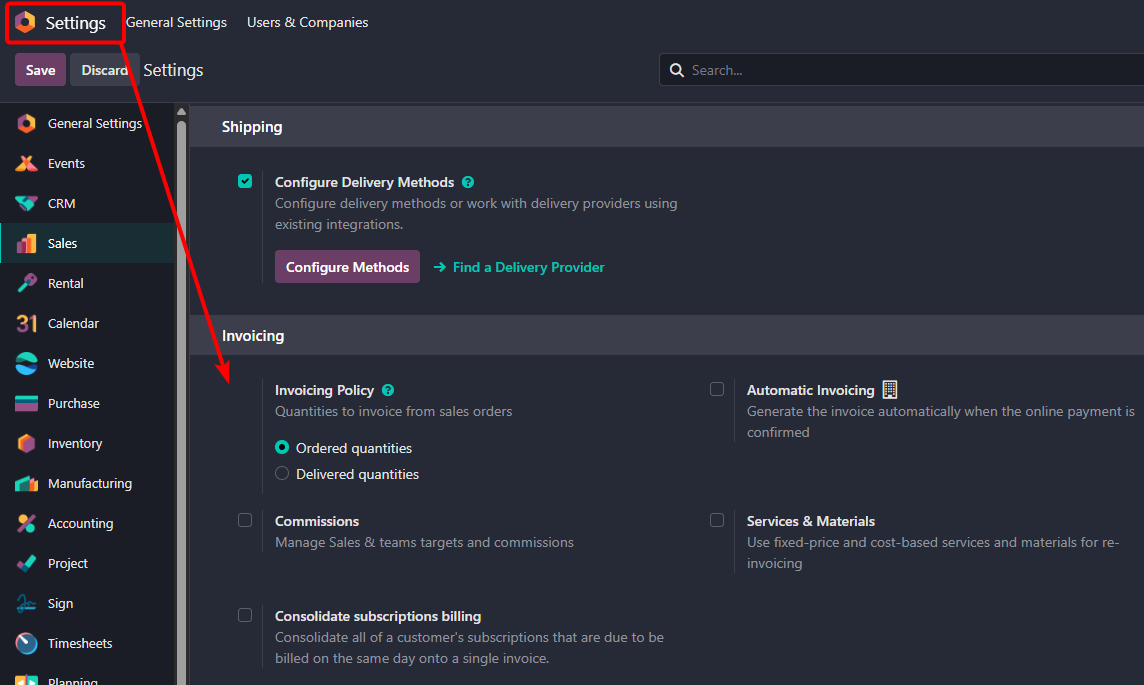
From here, you can choose the default invoicing approach for your sales process, such as invoicing based on Ordered Quantities or Delivered Quantities.
You can also configure the invoicing policy separately for each product. To do this, go to:
Sales → Products → Products → Select a Product → General Information
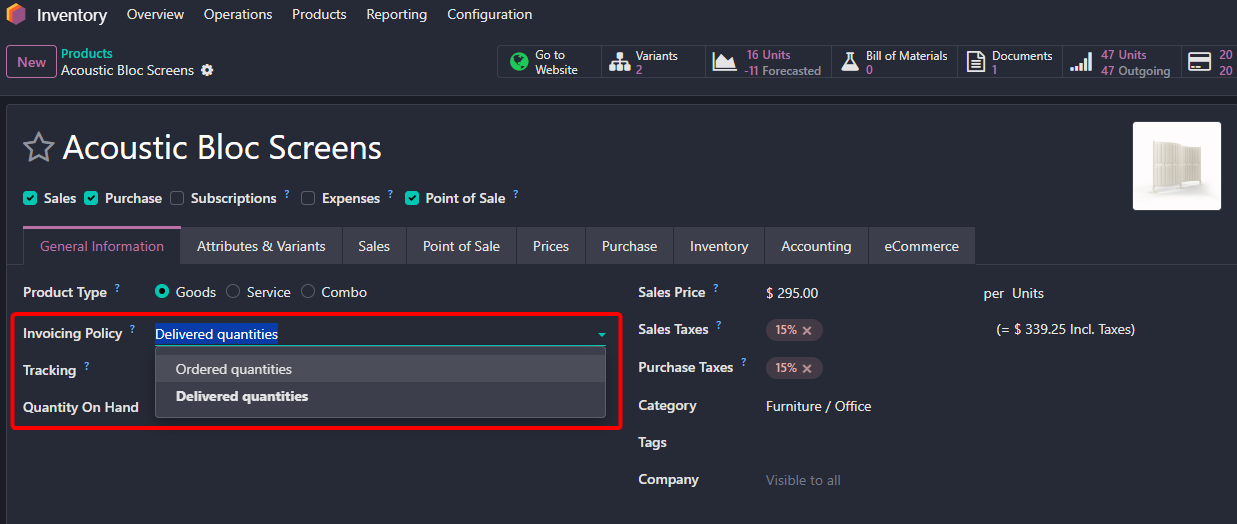
Inside the product form, you will find the Invoicing Policy field. This allows you to decide whether that specific product should be invoiced based on the quantity ordered by the customer or the quantity actually delivered.
This product-level configuration is especially useful when a business sells different types of products with different billing requirements. For example, some products may need to be invoiced immediately after the sales order is confirmed, while others should only be invoiced after delivery.
One important point to remember is that changing the invoicing policy from the Sales Settings page generally affects the default policy for newly created products. Existing products should be reviewed and updated individually when necessary.
What Is the Delivered Quantities Invoicing Policy in Odoo?
The Delivered Quantities Invoicing Policy in Odoo means that a customer is invoiced only for the quantity of products that has actually been delivered.
In simple terms, Odoo does not base the invoice on what the customer ordered. Instead, it checks how much of the ordered quantity has been delivered and allows you to invoice only that amount.
This invoicing policy is especially useful for businesses where deliveries can happen partially, stock availability may change, or customers should only pay for products they have physically received.
Real-Life Example
Suppose a customer places an order for 100 office chairs at $50 per chair.
The total Sales Order value is:
100 Chairs × $50 = $5,000
However, your warehouse currently has only 60 chairs available.
With the Delivered Quantities invoicing policy, the workflow would look like this:
Sales Order for 100 Chairs → Deliver 60 Chairs → Validate Delivery → Create Invoice
Since only 60 chairs have been delivered, Odoo allows you to invoice:
60 Chairs × $50 = $3,000
The remaining 40 chairs are still pending delivery and are not included in the first invoice.
Later, when the remaining 40 chairs become available, you can deliver them and create another invoice:
40 Chairs × $50 = $2,000
So, the complete billing process becomes:
First Invoice: $3,000
Second Invoice: $2,000
Total Invoiced: $5,000
Example of Delivered Quantities Invoicing Policy in Odoo 19
Let’s understand the Delivered Quantities invoicing policy in Odoo 19 with a simple practical example.
Suppose we sell a product called Chair with the following configuration:
- Sales Price: $50 per unit
- Invoicing Policy: Delivered Quantities
- Ordered Quantity: 20 Chairs
The total Sales Order value will therefore be:
20 Chairs × $50 = $1,000
However, instead of delivering all 20 chairs at once, we will first deliver 10 chairs, create an invoice for those 10 chairs, and then deliver and invoice the remaining 10 chairs.
The complete flow will be:
Sales Order for 20 Chairs → Deliver 10 → Invoice 10 → Deliver Remaining 10 → Invoice Remaining 10
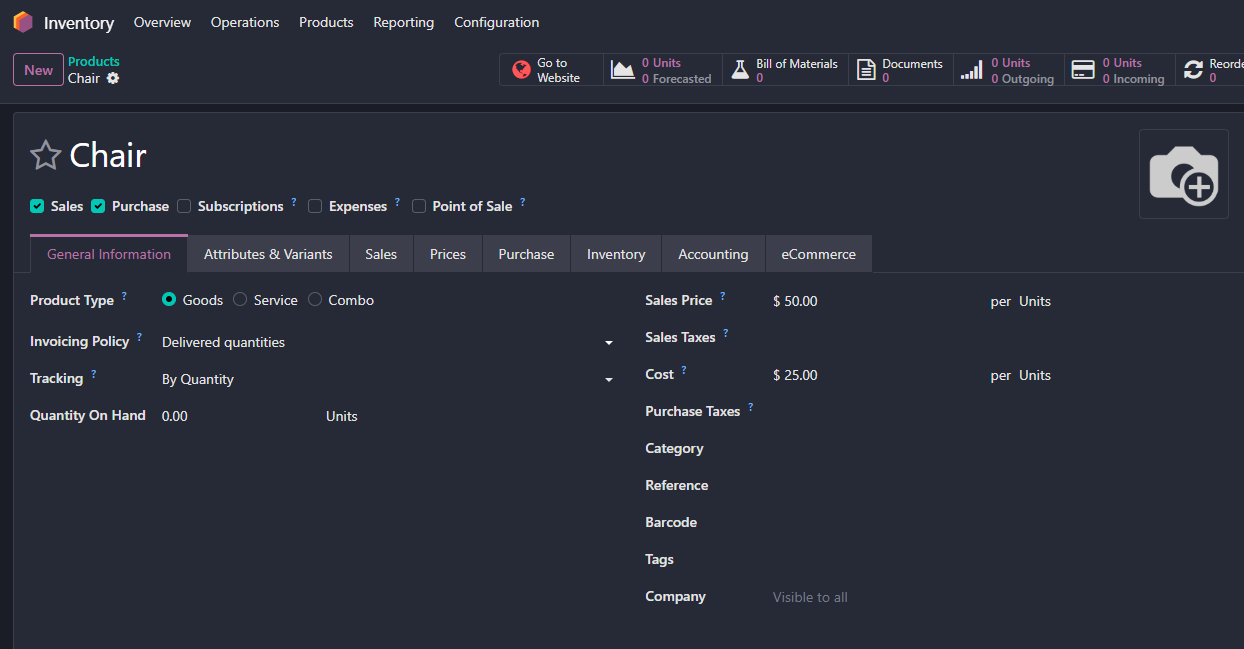
Step 1: Configure the Chair Product
Go to: Sales → Products → Products
Open the Chair product and make sure the sales price is set to:
Sales Price = $50
Under the General Information section, set the Invoicing Policy to: Delivered Quantities
This configuration tells Odoo that this product can only be invoiced based on the quantity that has actually been delivered.
Step 2: Create a Sales Order for 20 Chairs
Go to: Sales → Orders → Quotations → New
Select a customer and add the Chair product.
Enter: Quantity = 20
Since the sales price is $50 per chair, the Sales Order amount will be: 20 × $50 = $1,000
Now click Confirm to convert the quotation into a Sales Order.
After confirmation, Odoo creates a Delivery Order for the products.
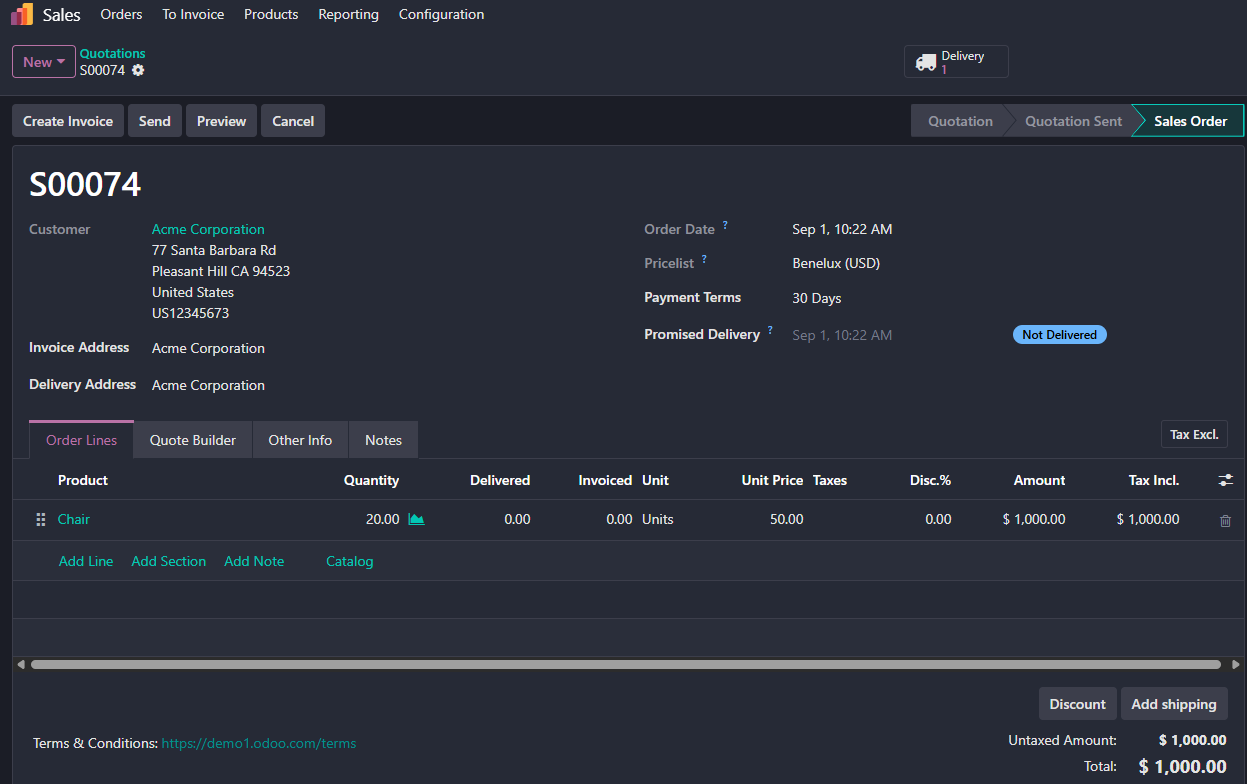
Because the product uses Delivered Quantities, the product must be delivered before a normal invoice can be created.
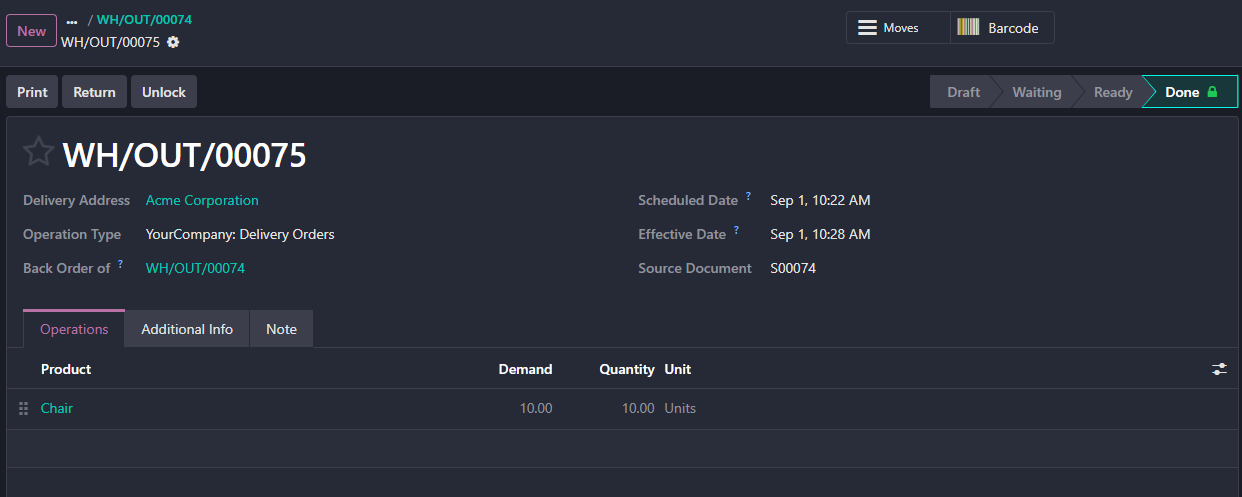
Step 3: Deliver Only 10 Chairs
From the Sales Order, click the Delivery smart button.
The Delivery Order contains the full demand of: 20 Chairs
But for the first shipment, we only want to deliver: 10 Chairs
Enter: Quantity = 10
Then click Validate.
Since only part of the Sales Order has been delivered, Odoo can create a backorder for the remaining quantity.
Choose Create Backorder so that the remaining 10 chairs can be delivered later. Odoo supports this partial-delivery workflow by keeping the undelivered quantity in a separate backorder delivery.
Step 4: Check the Sales Order After the First Delivery
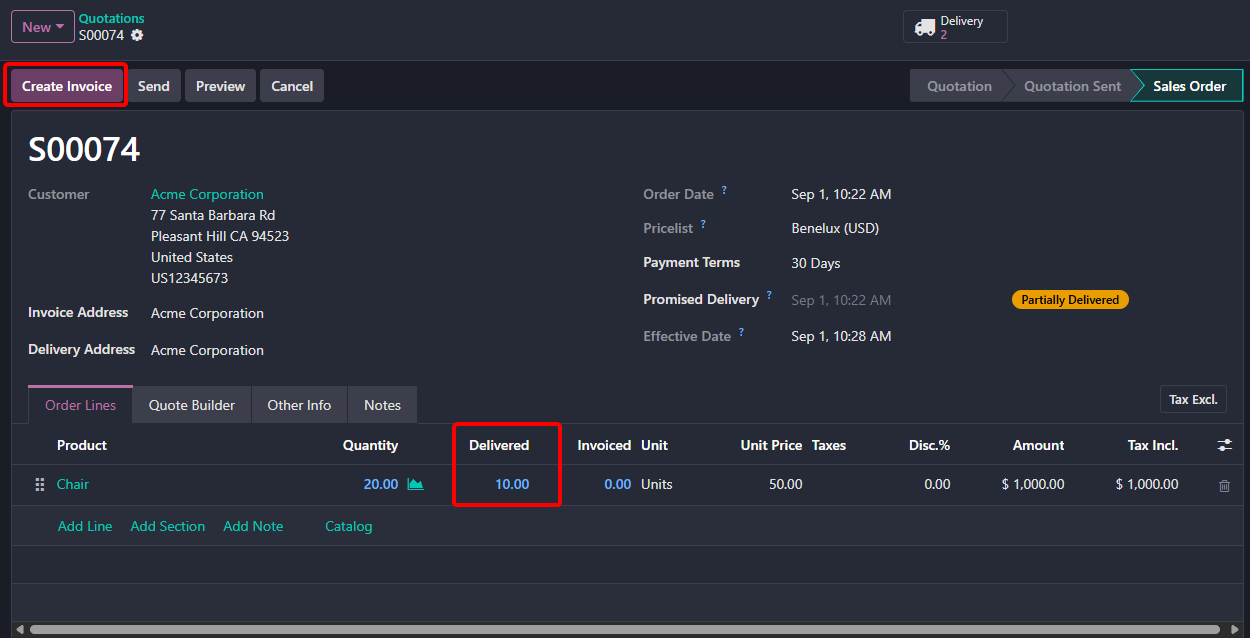
Return to the Sales Order.
Odoo will now update the delivered quantity.
Because 10 chairs have now been delivered, those 10 units are ready to be invoiced.
Odoo also enables the Create Invoice action after at least a partial delivery has been validated.
Step 5: Create the First Invoice
Click Create Invoice from the Sales Order.
Create the draft invoice.
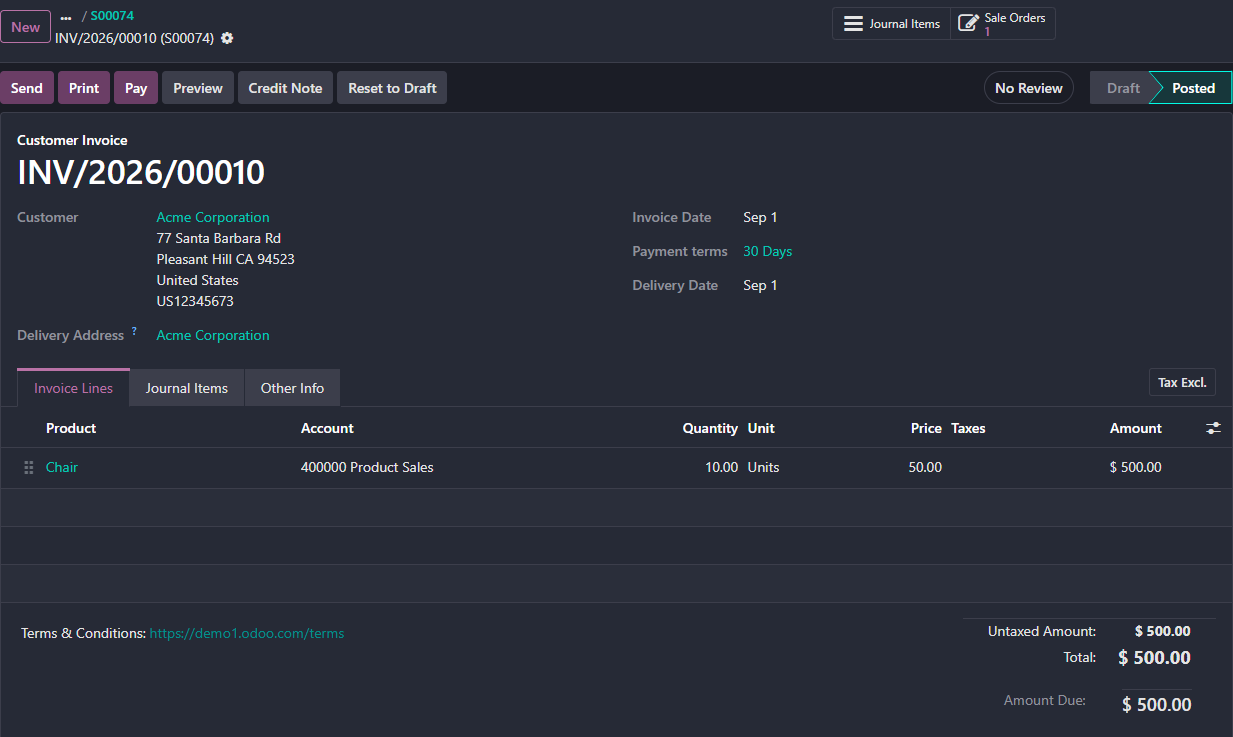
Because only 10 chairs have been delivered, Odoo creates the invoice based on those 10 chairs instead of the original ordered quantity of 20.
The first invoice will therefore be: 10 Chairs × $50 = $500
Confirm the invoice when appropriate.
This is the core concept of the Delivered Quantities invoicing policy:
Odoo invoices what has actually been delivered, not simply what was ordered.
Step 6: Check the Sales Order Again
After creating the first invoice, return to the Sales Order.
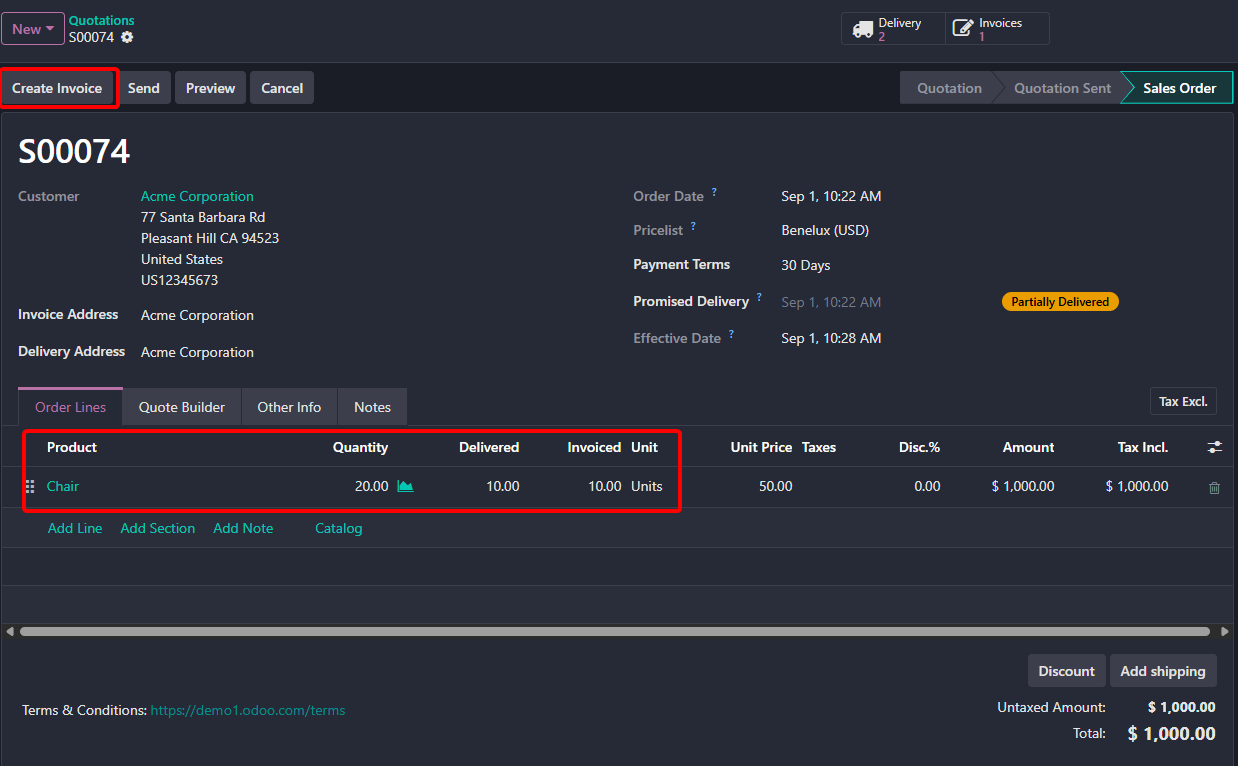
The quantities should now representThis tells us:
- The customer ordered 20 chairs.
- We have delivered 10 chairs.
- We have already invoiced those 10 chairs.
- Another 10 chairs still need to be delivered.
- But, Create Invoice button is greyed out as we need to deliver the rest of the quantities.
Step 7: Deliver the Remaining 10 Chairs
Now process the backorder created during the first partial delivery.
Open the remaining Delivery Order.
The remaining quantity should be: 10 Chairs
Enter the quantity and click Validate.
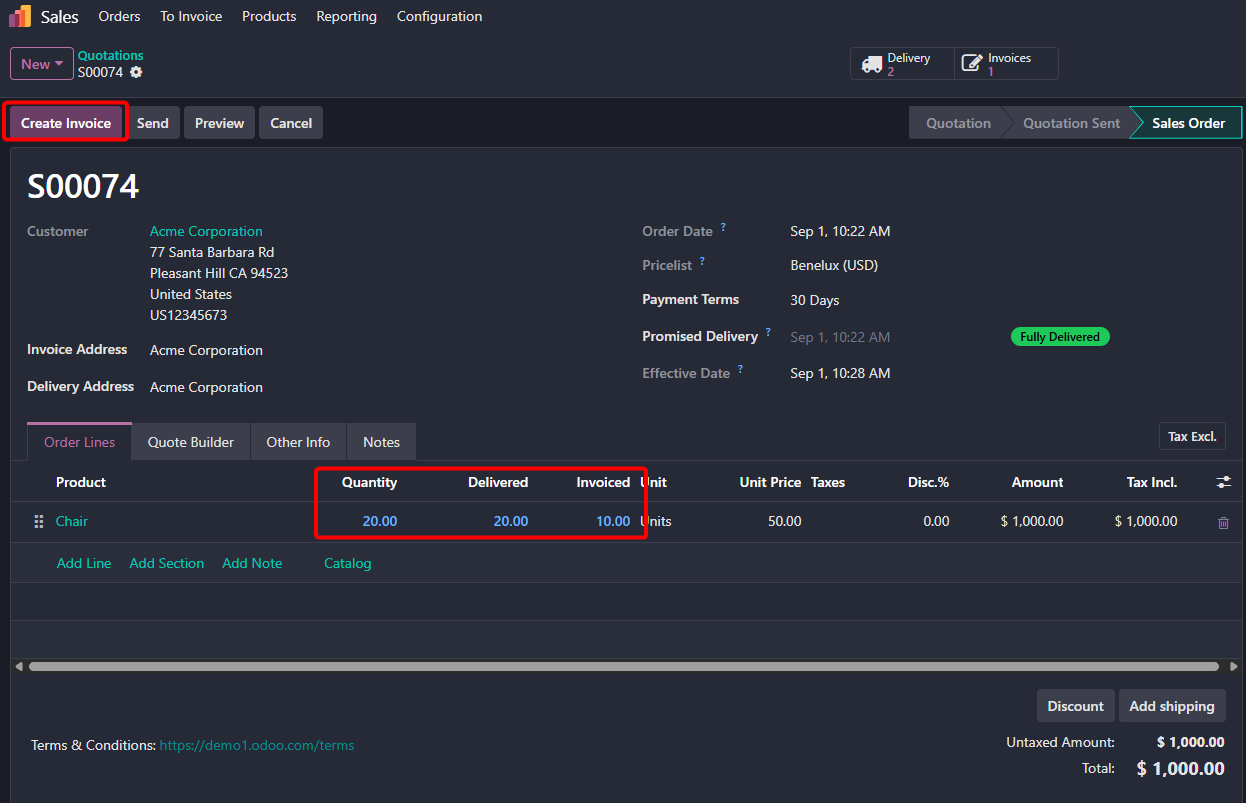
After validation, the complete order has now been delivered.
There are now another 10 delivered but not yet invoiced chairs.
Step 8: Create the Second Invoice
Return to the Sales Order and click Create Invoice again.
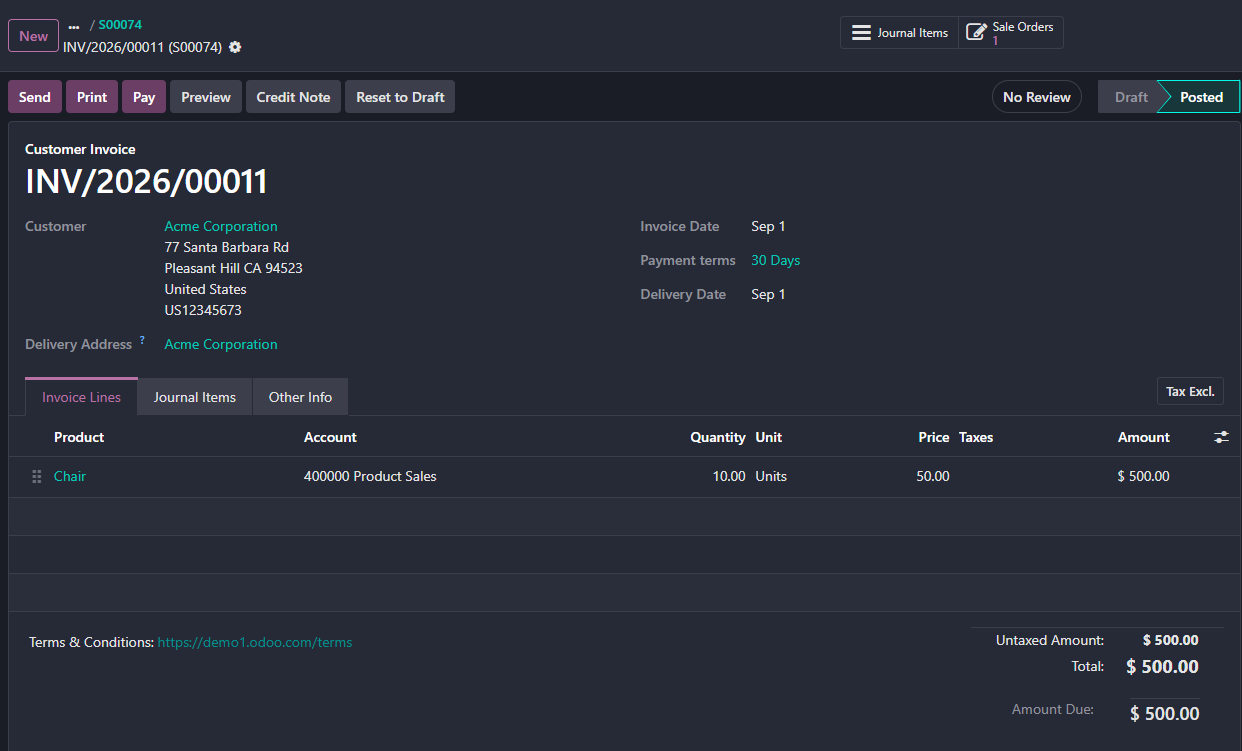
Odoo will now invoice only the quantity that has been delivered but has not yet been invoiced.
That quantity is:
20 Delivered − 10 Previously Invoiced = 10 Chairs
Therefore, the second invoice will be: 10 Chairs × $50 = $500
Step 9: Final Sales Order Status
After the second invoice is created, the transaction is fully delivered and fully invoiced.
The financial result is:
Sales Order: 20 Chairs × $50 = $1,000
First Delivery: 10 Chairs
First Invoice: 10 × $50 = $500
Second Delivery: 10 Chairs
Second Invoice: 10 × $50 = $500
Total Delivered: 20 Chairs
Total Invoiced: $1,000
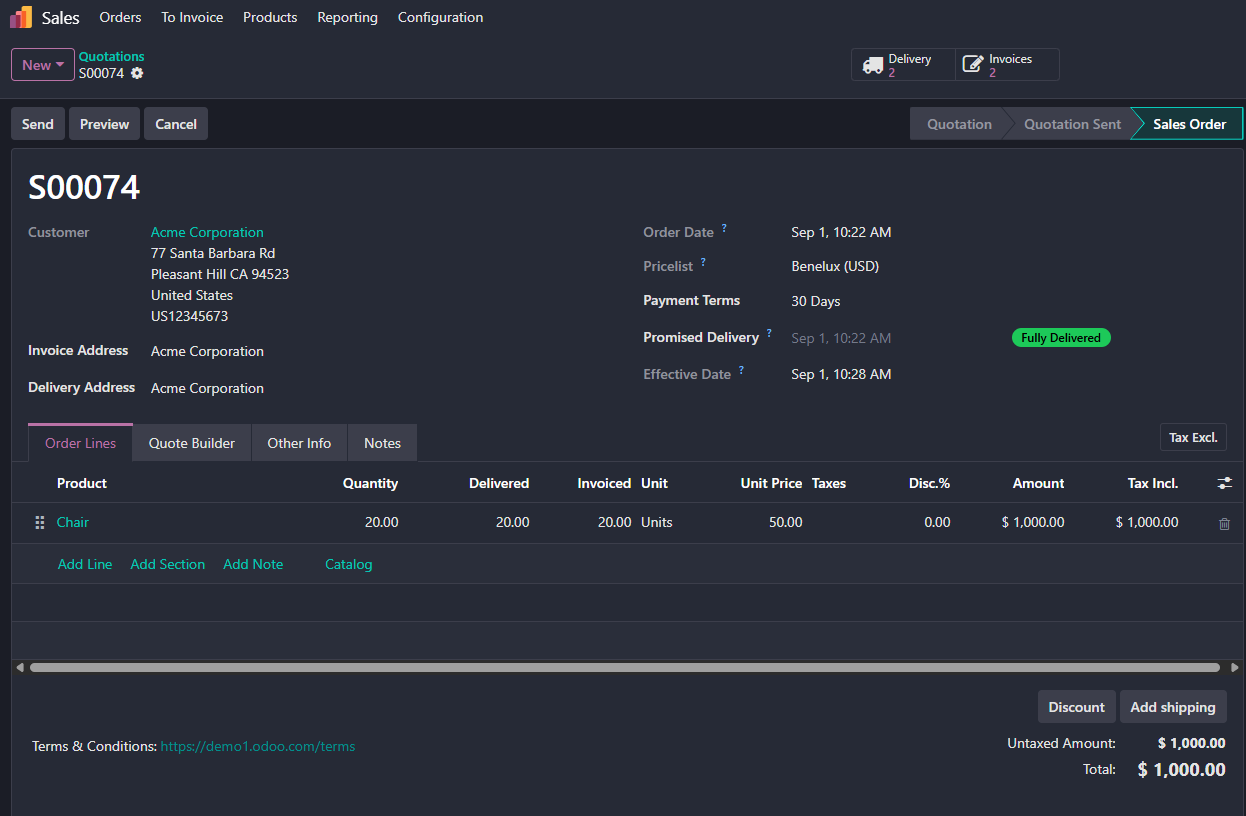
This example demonstrates why the Delivered Quantities invoicing policy in Odoo is useful for businesses that frequently handle partial shipments or backorders. Instead of billing the customer for all 20 chairs immediately, Odoo allows the business to invoice only the quantities that have actually been delivered.
Odoo “Cannot create an invoice. No items are available to invoice” Error Fix
This error appears when Odoo cannot find any quantity that is currently eligible for invoicing. It commonly happens when the product is configured with the Delivered Quantities invoicing policy but the delivery has not yet been completed or validated. It can also happen when the full invoiceable quantity has already been invoiced.
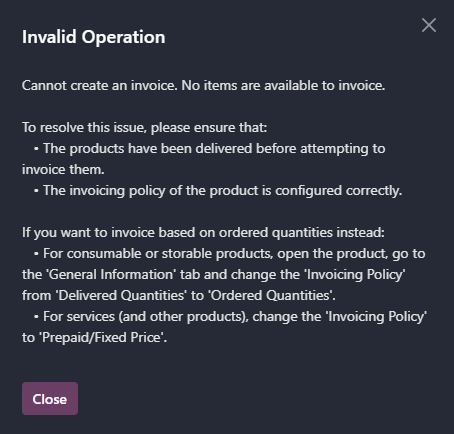
To fix it, first check the product’s Invoicing Policy. If it is set to Delivered Quantities, complete and validate the delivery before creating the invoice. If your business needs to invoice immediately after confirming the Sales Order, change the policy to Ordered Quantities. Also verify the Sales Order’s Delivered and Invoiced quantities to ensure there is still something left to invoice.
Why Use Delivered Quantities?
The main advantage of this policy is that the invoice always reflects the actual quantity delivered to the customer.
From a business-process perspective, I usually recommend this approach when delivery execution should control billing. It works particularly well for trading, distribution, wholesale, manufacturing, and other businesses where partial deliveries or backorders are common.
A simple way to remember it is:
Delivered Quantities = Invoice what the customer has actually received.
This makes the billing process more accurate and helps prevent customers from being invoiced for products that have not yet been delivered.
What Is the Ordered Quantities Invoicing Policy in Odoo?
The Ordered Quantities invoicing policy in Odoo allows a business to invoice customers based on the quantity they ordered, regardless of whether the products have already been delivered.
With this policy, the invoice can be created as soon as the Sales Order is confirmed. It is useful for businesses that require advance billing, upfront payment, or invoicing before delivery, where the ordered quantity itself is the basis for customer billing.
Example of Ordered Quantities Invoicing Policy in Odoo 19
Let’s use the same Chair example, but this time with the Ordered Quantities invoicing policy.
Create a product called Chair with:
- Sales Price: $50
- Invoicing Policy: Ordered Quantities
Then create a Sales Order for: 20 Chairs × $50 = $1,000
The key difference is that, with Ordered Quantities, Odoo allows you to create the invoice as soon as the Sales Order is confirmed. You do not need to complete the delivery first.
Step 1: Configure the Product
Go to: Sales → Products → Products → Chair
Set:
Sales Price = $50
Invoicing Policy = Ordered Quantities
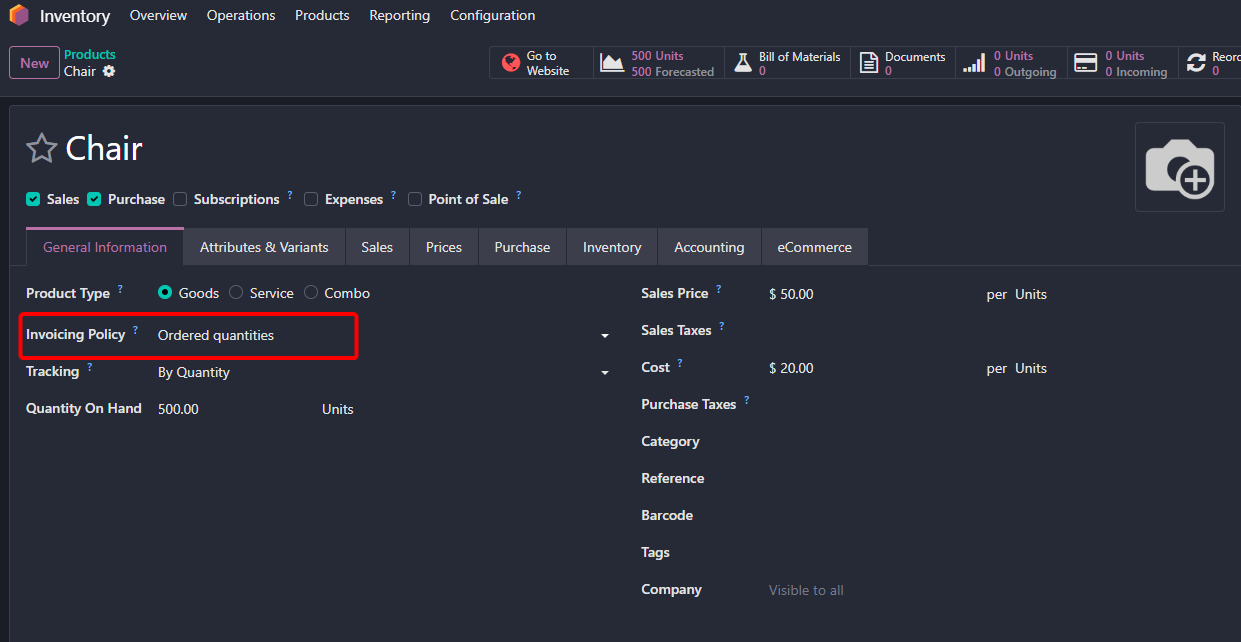
Step 2: Create and Confirm the Sales Order
Create a quotation for 20 Chairs and confirm it.
The Sales Order total will be: 20 × $50 = $1,000
At this stage, even though nothing has been delivered yet, the full ordered quantity is already available for invoicing.
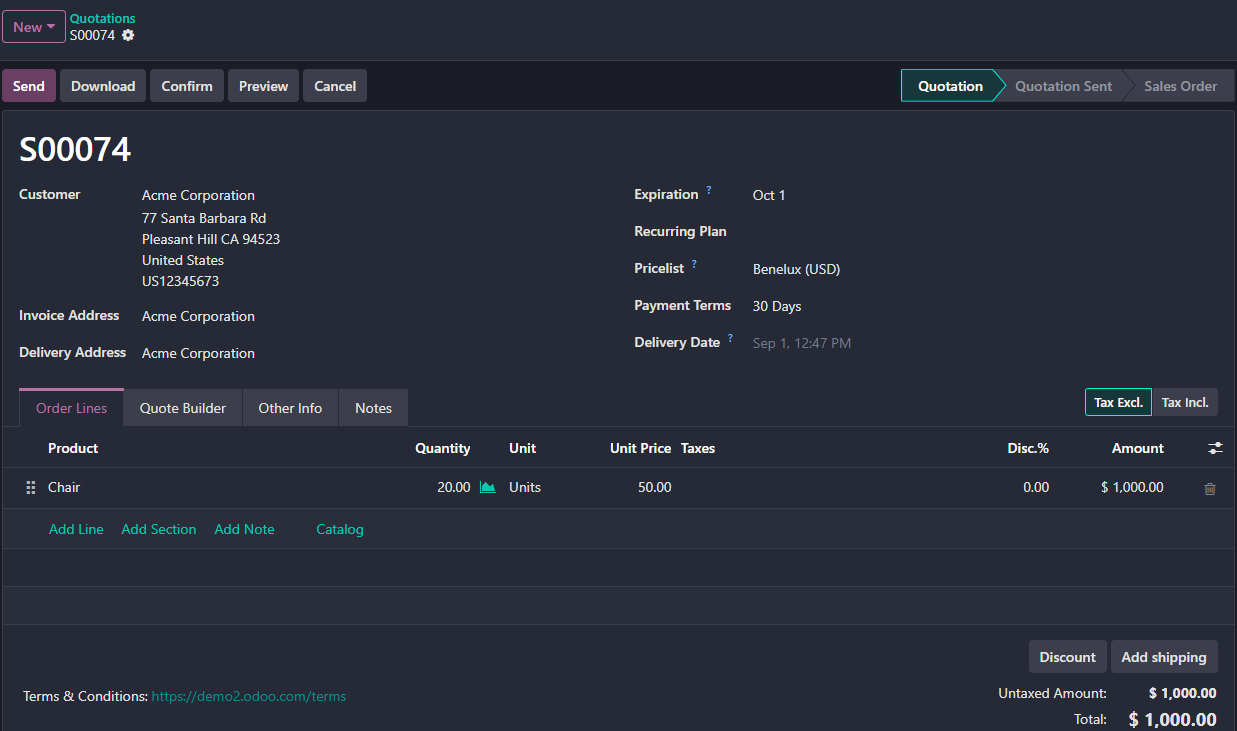
Step 3: Create the Invoice Before Delivery
From the confirmed Sales Order, you can see it is already showing us that we can Create Invoice even if we didn’t deliver the products.
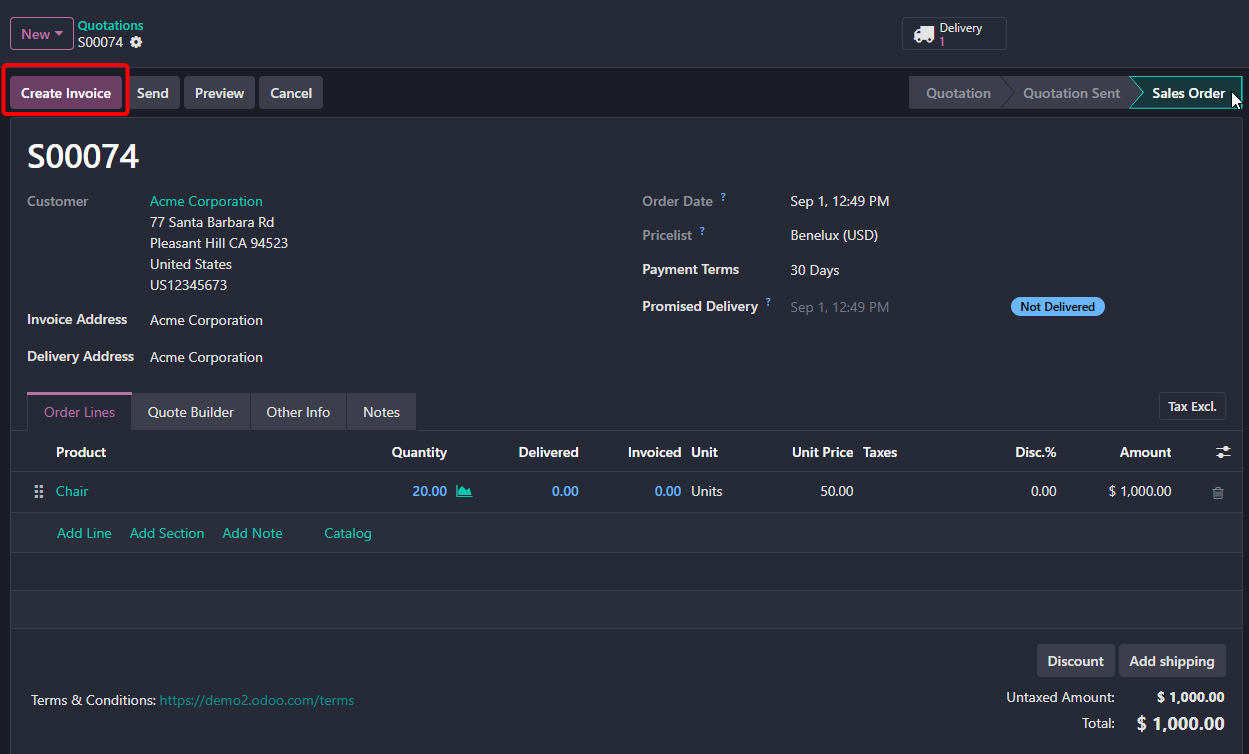
Click on Create Invoice. Odoo will create an invoice for the full ordered quantity:
20 Chairs × $50 = $1,000
This happens even if the delivered quantity is still 0.
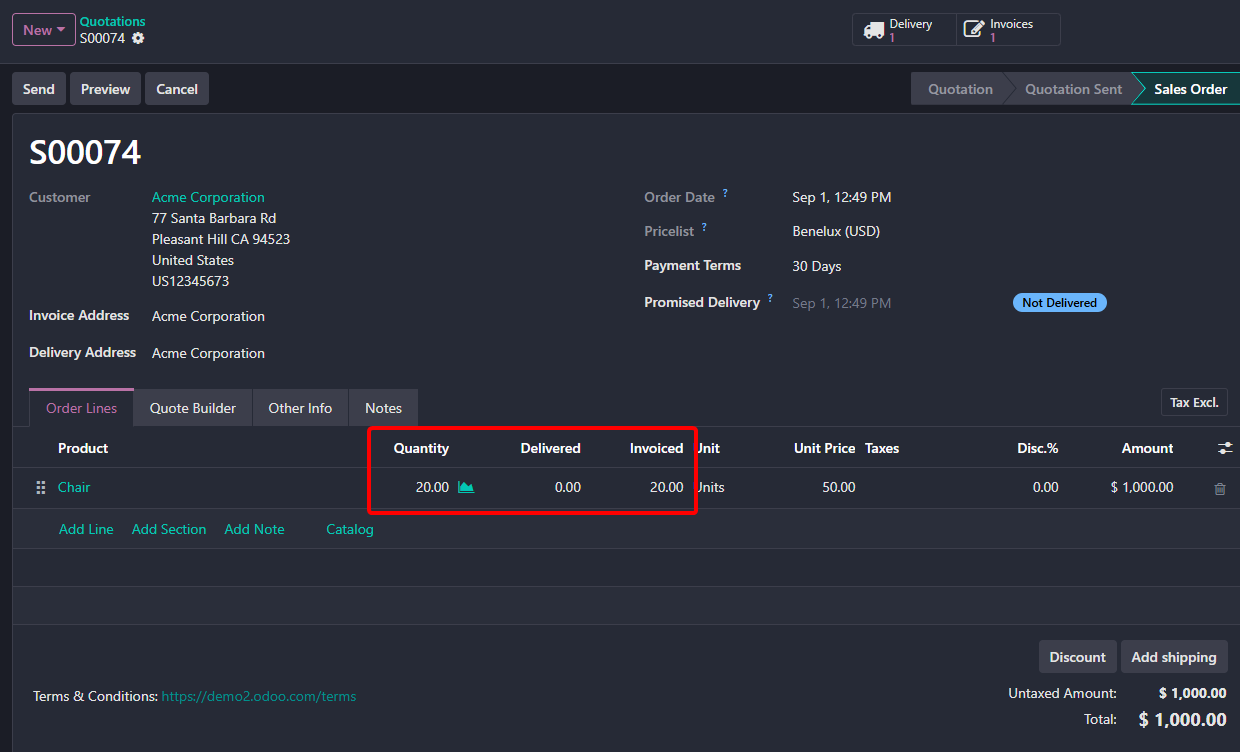
Step 4: Deliver 10 Chairs
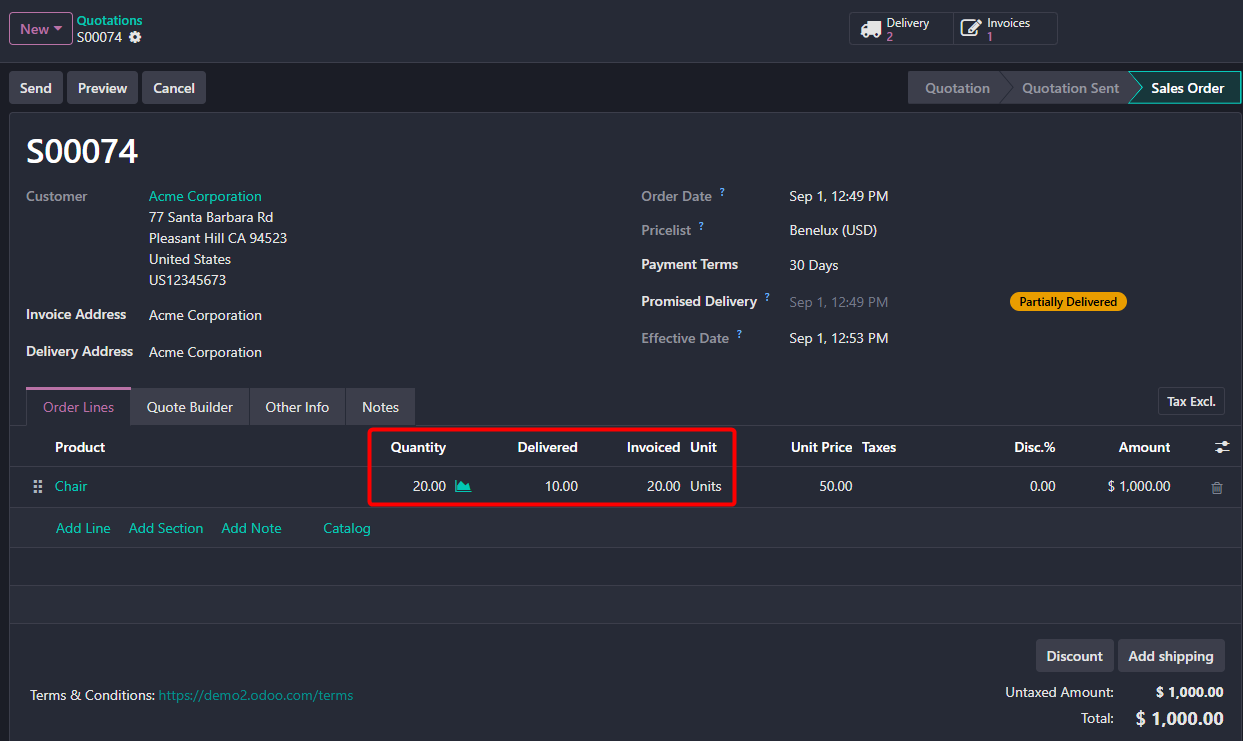
Now open the Delivery Order and deliver only 10 Chairs.
Validate the delivery and create a backorder for the remaining 10 chairs.
The customer has already been invoiced for all 20 chairs, so this delivery does not create another invoiceable quantity.
Step 5: Deliver the Remaining 10 Chairs
Open the backorder and deliver the remaining 10 Chairs.
After validation, the full order is delivered.
The final Sales Order status will be:
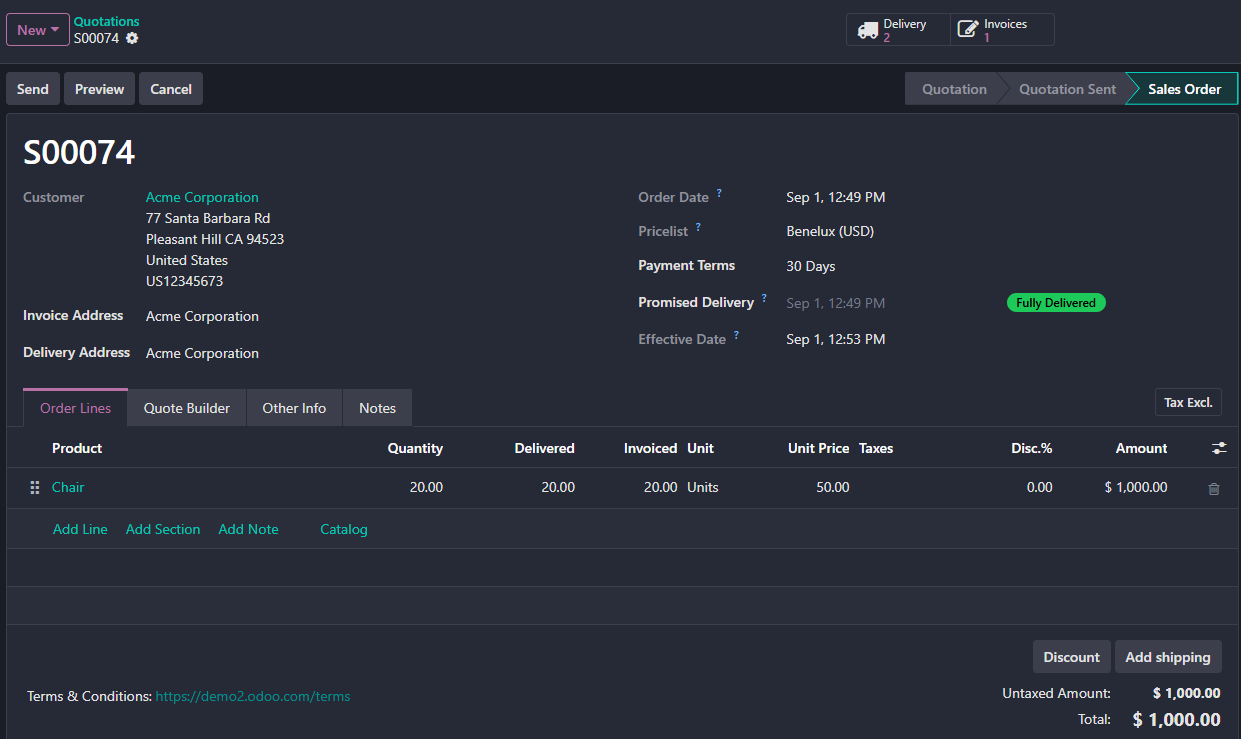
So, we can say:
Ordered Quantities = Invoice first based on the Sales Order quantity; delivery can happen afterward.
Odoo Delivered Quantities vs Ordered Quantities Invoicing Policy
| Feature | Delivered Quantities | Ordered Quantities |
|---|---|---|
| Invoice Based On | Quantity actually delivered | Quantity ordered by the customer |
| When Invoice Can Be Created | After delivery is completed/validated | After Sales Order confirmation |
| Delivery Required Before Invoice | Yes | No |
| Partial Delivery Support | Very suitable | Delivery does not affect invoice quantity |
| Partial Invoicing | Based on each delivered quantity | Usually based on ordered quantity |
| Backorder Handling | Remaining quantity can be invoiced after later delivery | Remaining delivery does not create new invoiceable quantity if already fully invoiced |
| Stock Shortage Scenario | Customer is invoiced only for what was delivered | Customer can be invoiced for the full order even if stock is unavailable |
| Best For | Trading, distribution, wholesale, manufacturing, partial shipments | Advance billing, upfront payment, pre-delivery invoicing |
| Billing Control | Delivery controls invoicing | Sales Order controls invoicing |
| Main Advantage | More accurate billing based on actual delivery | Faster invoicing without waiting for delivery |
| Simple Rule | Deliver first, then invoice | Confirm order, then invoice |
Odoo Invoicing Policy – What to Choose and When?
Choosing between Ordered Quantities and Delivered Quantities depends on when your business wants to bill the customer.
| Business Scenario | Recommended Invoicing Policy | Why? |
|---|---|---|
| Customer should be invoiced immediately after Sales Order confirmation | Ordered Quantities | Invoice can be created without waiting for delivery |
| Customer should pay before receiving the products | Ordered Quantities | Suitable for advance or upfront billing |
| Delivery may happen in multiple shipments | Delivered Quantities | Invoice can follow the actual delivered quantity |
| Stock shortages or backorders are common | Delivered Quantities | Customer is billed only for what has been delivered |
| Business wants invoice quantity to match physical delivery | Delivered Quantities | Delivery controls the invoiceable quantity |
| Products are normally fully invoiced before shipment | Ordered Quantities | Simpler and faster billing workflow |
| Wholesale or distribution business with partial deliveries | Delivered Quantities | Better control over partial shipment billing |
| Business has a fixed order-based billing process | Ordered Quantities | Ordered quantity remains the basis of invoicing |
In Summary
Odoo’s invoicing policy determines whether customers are billed based on what they ordered or what they actually received. Ordered Quantities is best when invoicing should happen immediately after Sales Order confirmation, while Delivered Quantities is better when billing should follow the actual delivery process. The right choice depends on your business workflow, especially how you handle deliveries, backorders, advance payments, and partial shipments.